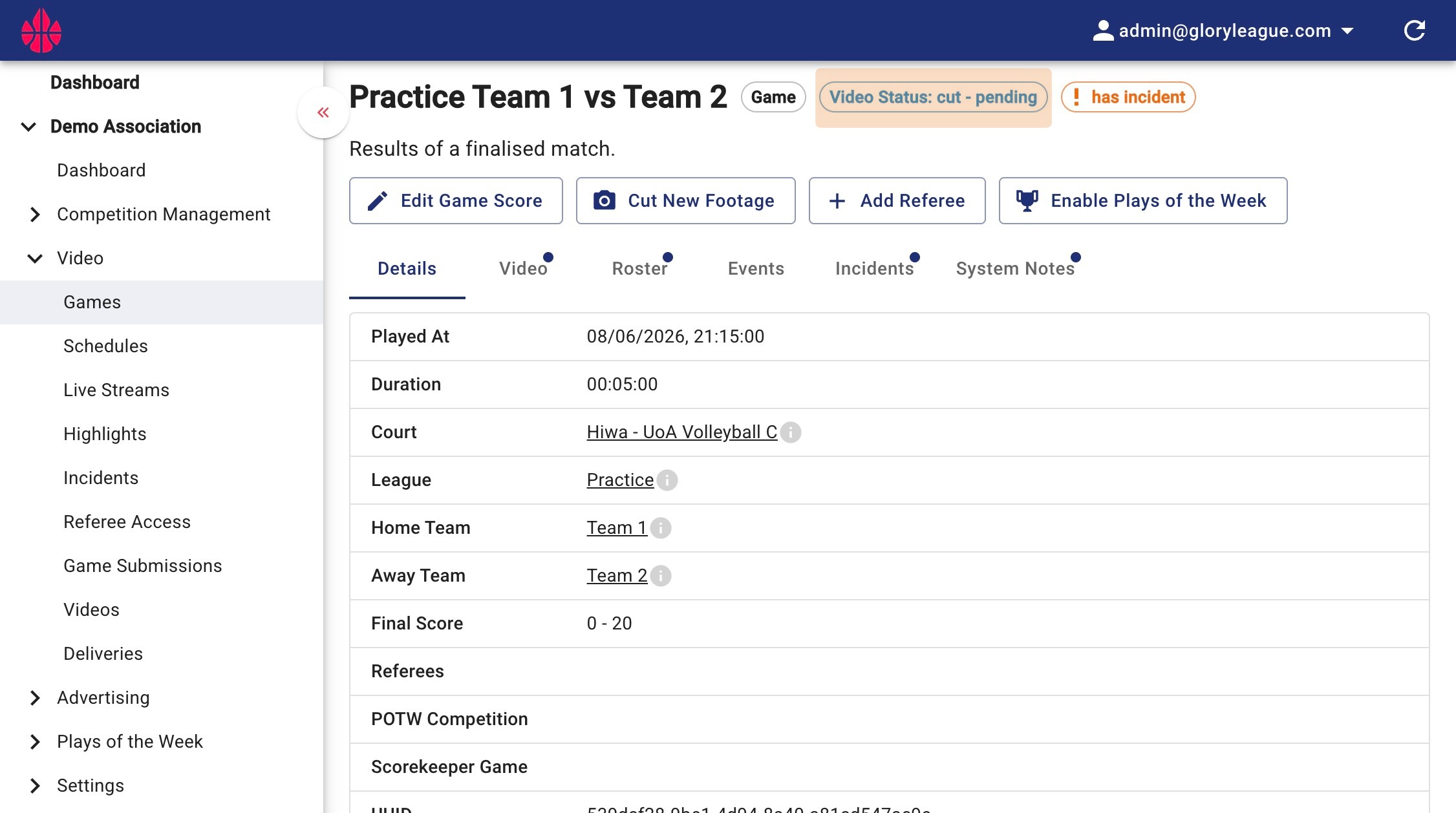
How to Recut and Re-upload a Game Video
This guide explains how to re-upload a game video in Glory League using the Cut New Footage button. This may be useful if the wrong court, date, start time or end time was used for the original game video.
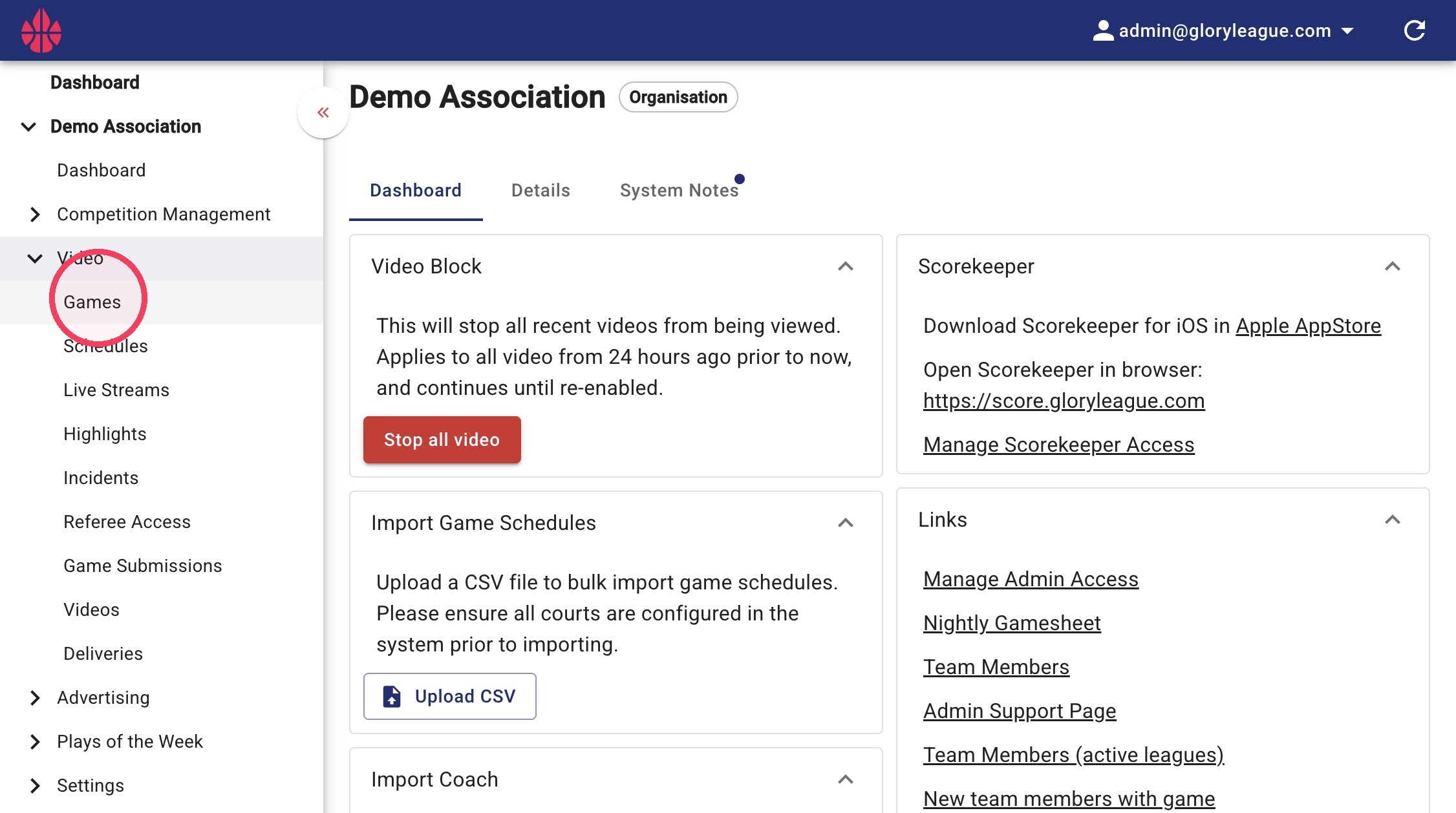
1. Click into the Games page under the Video dropdown.
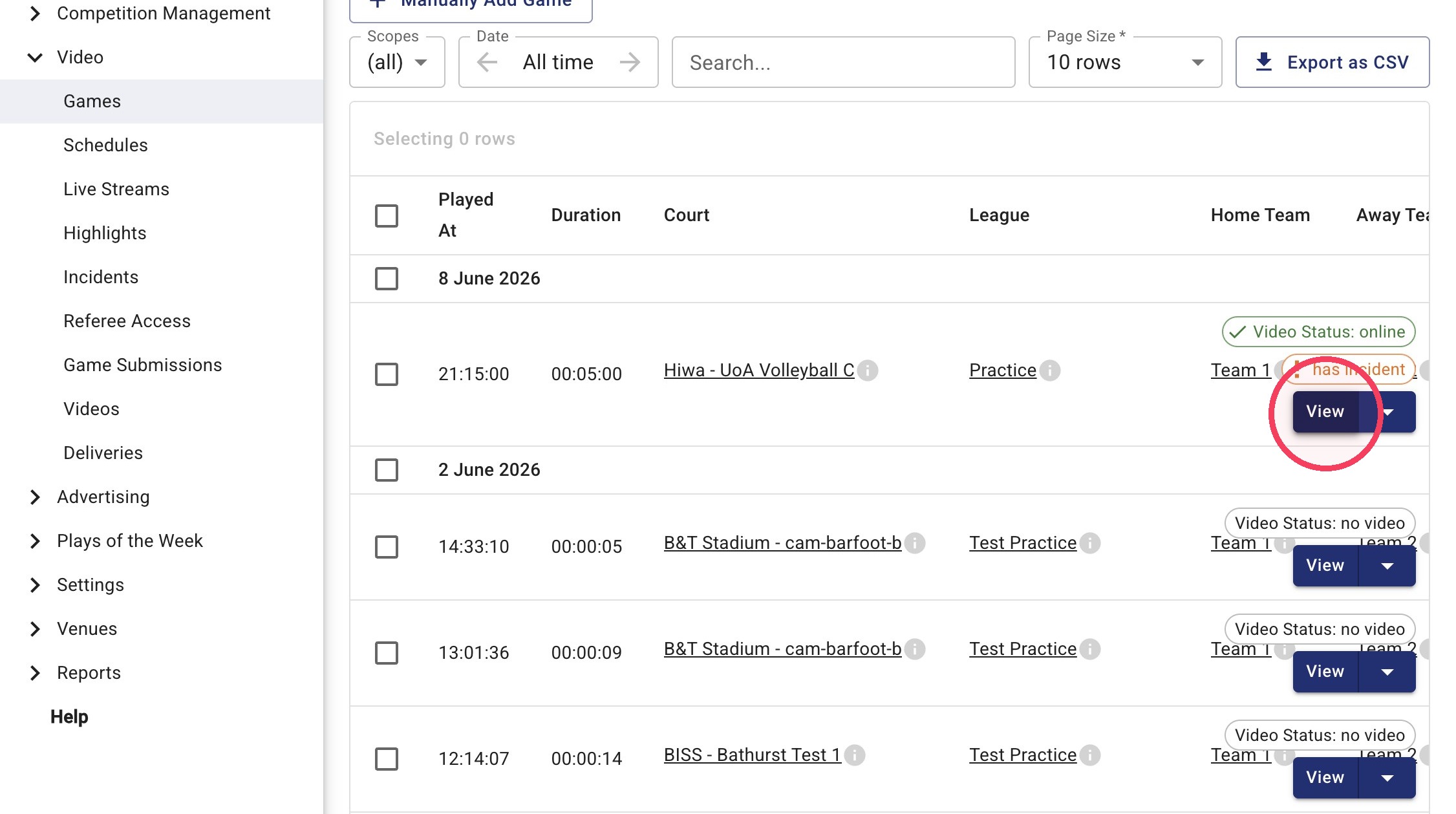
2. Find the relevant game and click View.
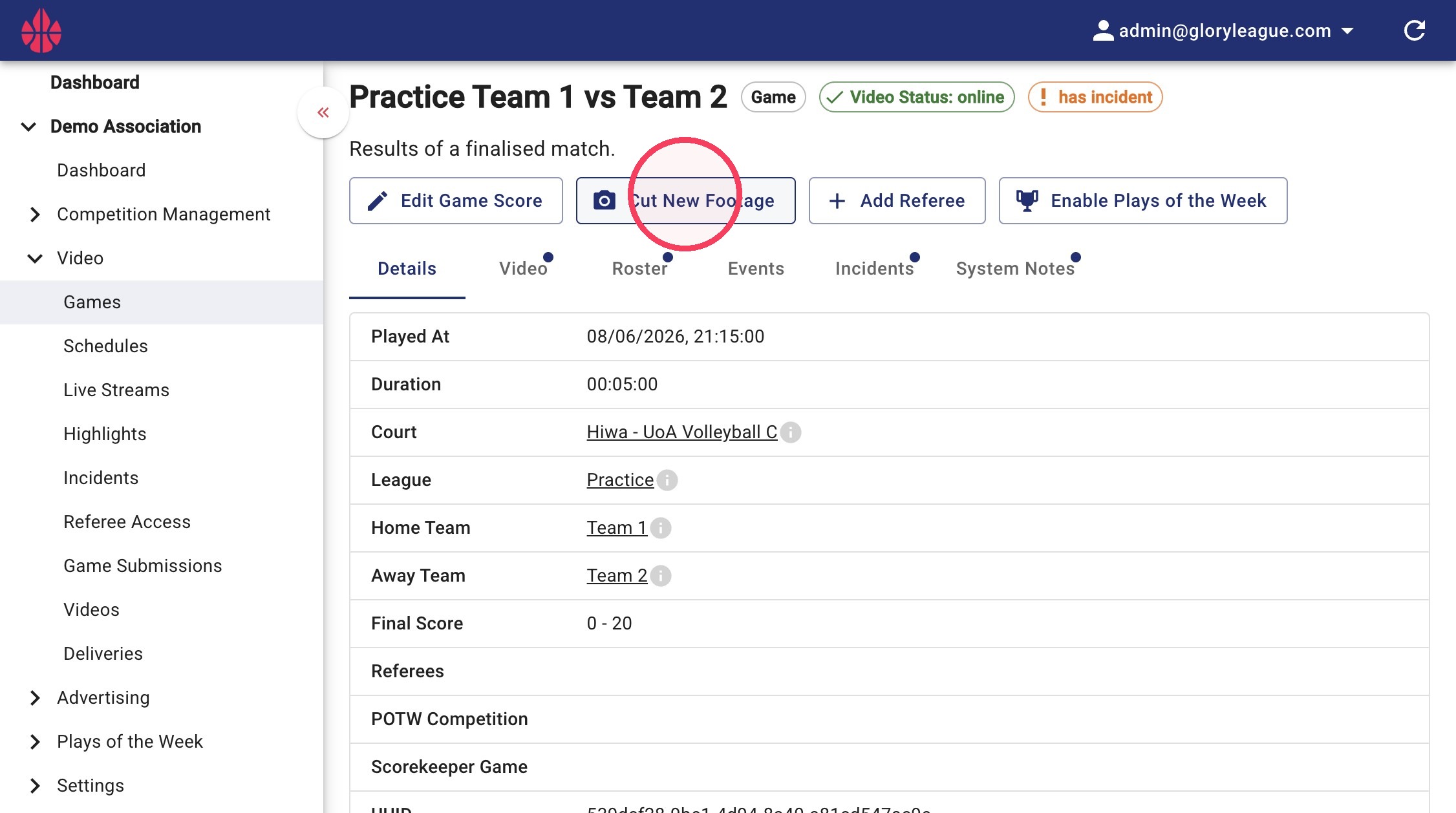
3. Click Cut New Footage.
4. Click the relevant field depending on what you need to update. The court, date, start time and end time can be changed.
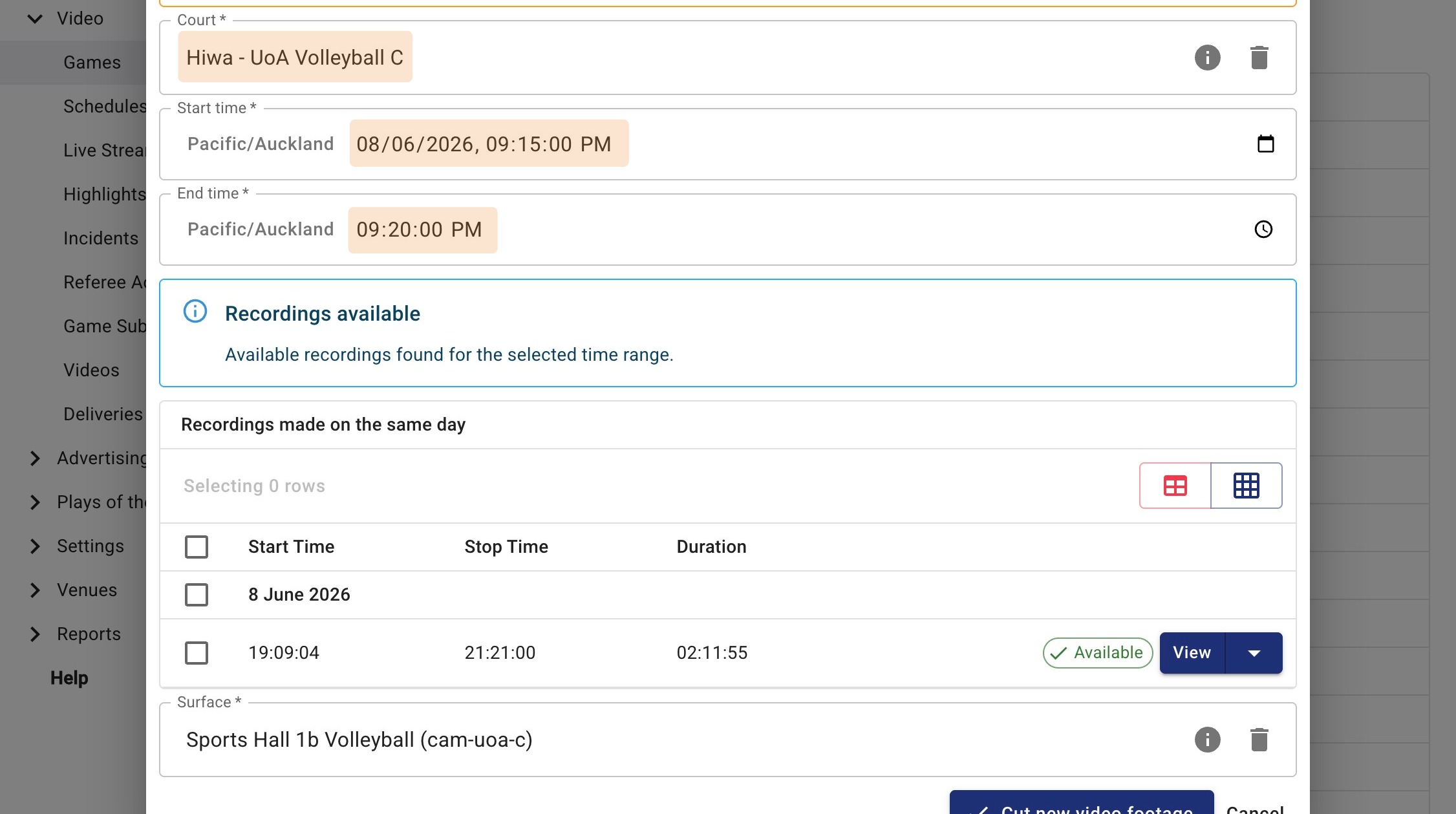
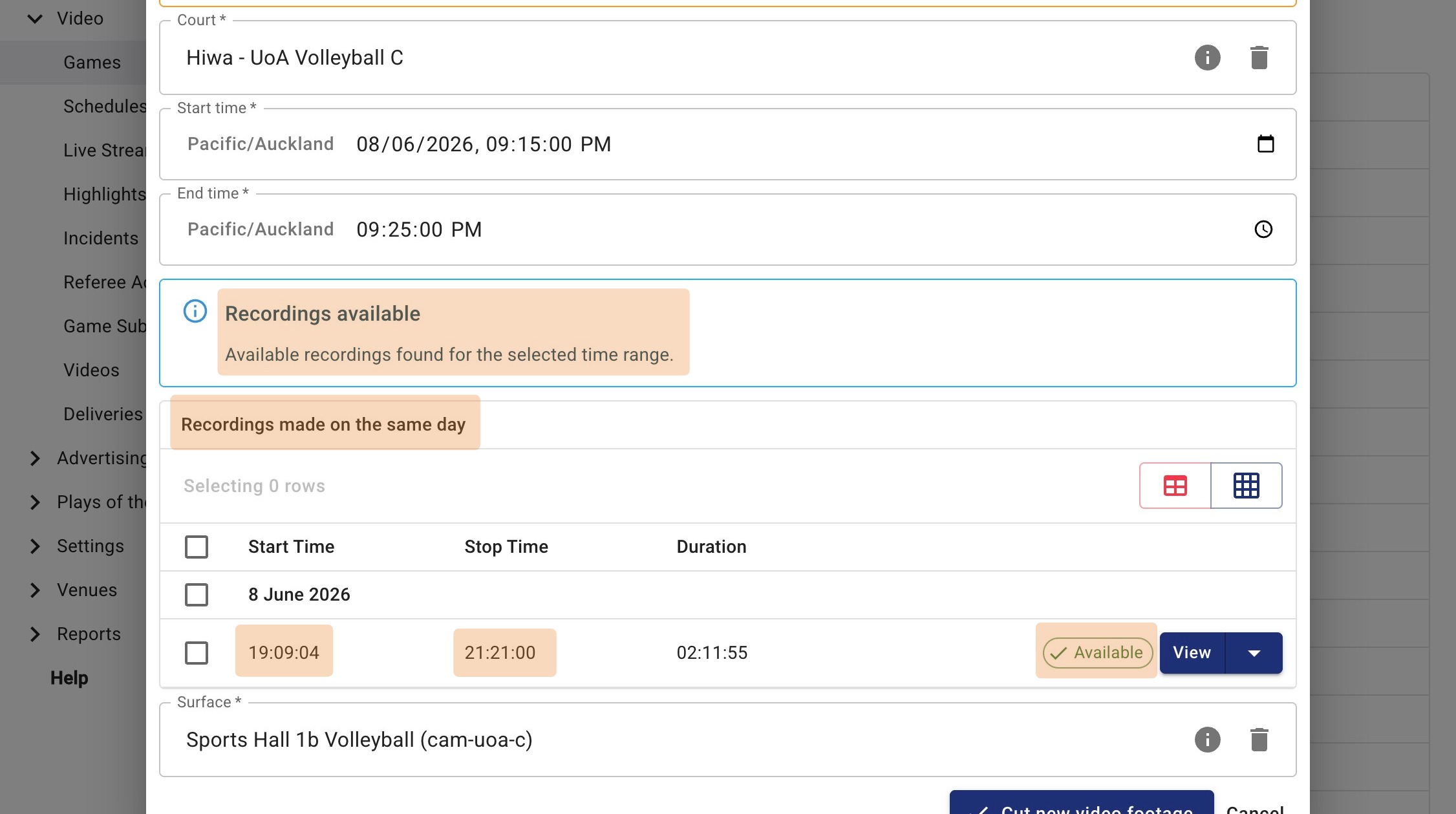
5. Check that recordings are available for the selected start and end time.
You will see the Recordings available message if the selected time range falls within the available recordings.
6. Click Cut new video footage.
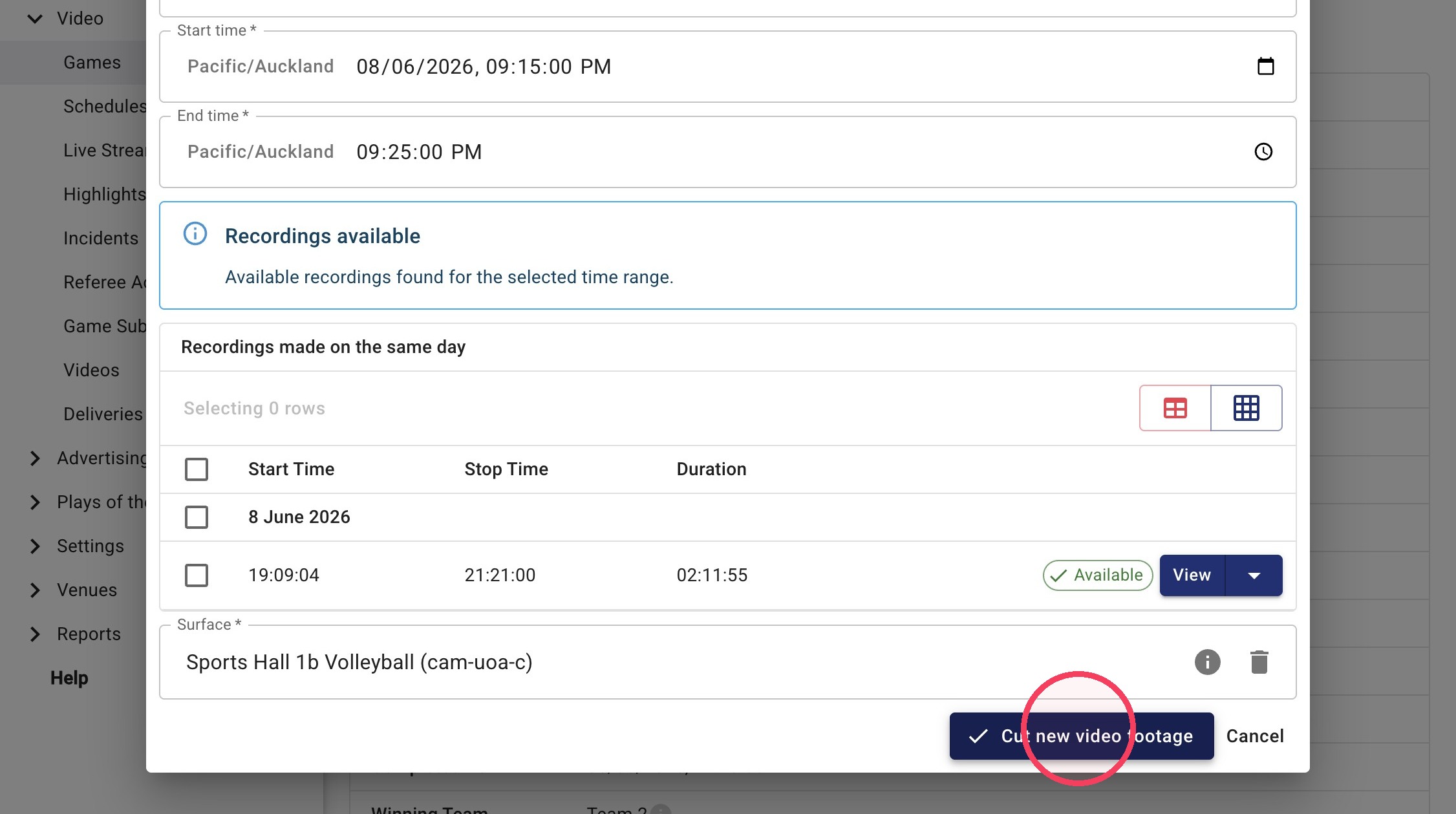
7. Your new video will begin uploading. Re-uploaded game videos are generally available within a few hours. The video status will show Video Status: Online when the game is ready to be viewed again.