How to Import Coaches via a CSV File
This guide explains how to bulk import coach details into Glory League using a CSV file. Imported coaches can also be emailed a team registration link so they can register and manage their team.
Prepare your CSV file
1. Before uploading your coach data:
- Download and complete the Coaches CSV template.
- Ensure the CSV headers and data match the required template.
- Check that all required fields are completed before uploading.

Import Coaches from Dashboard
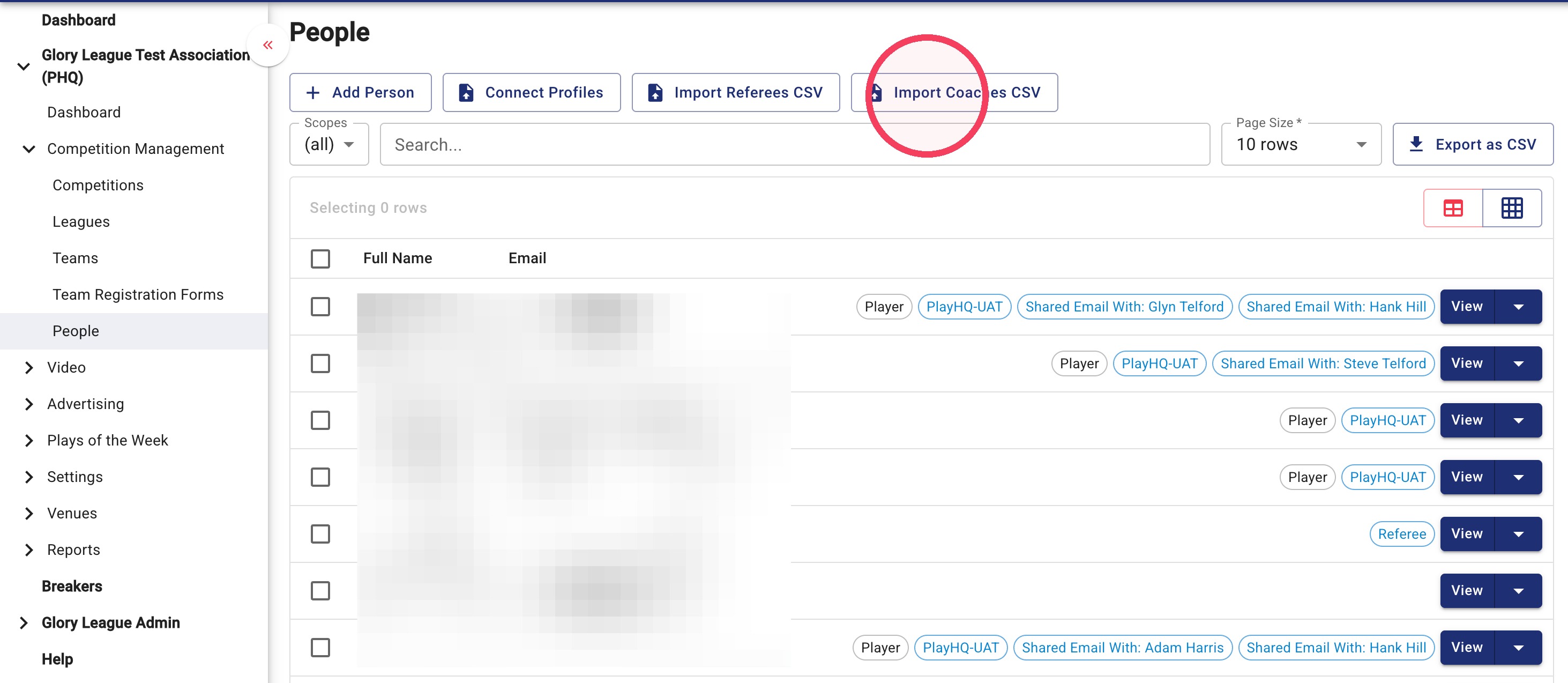
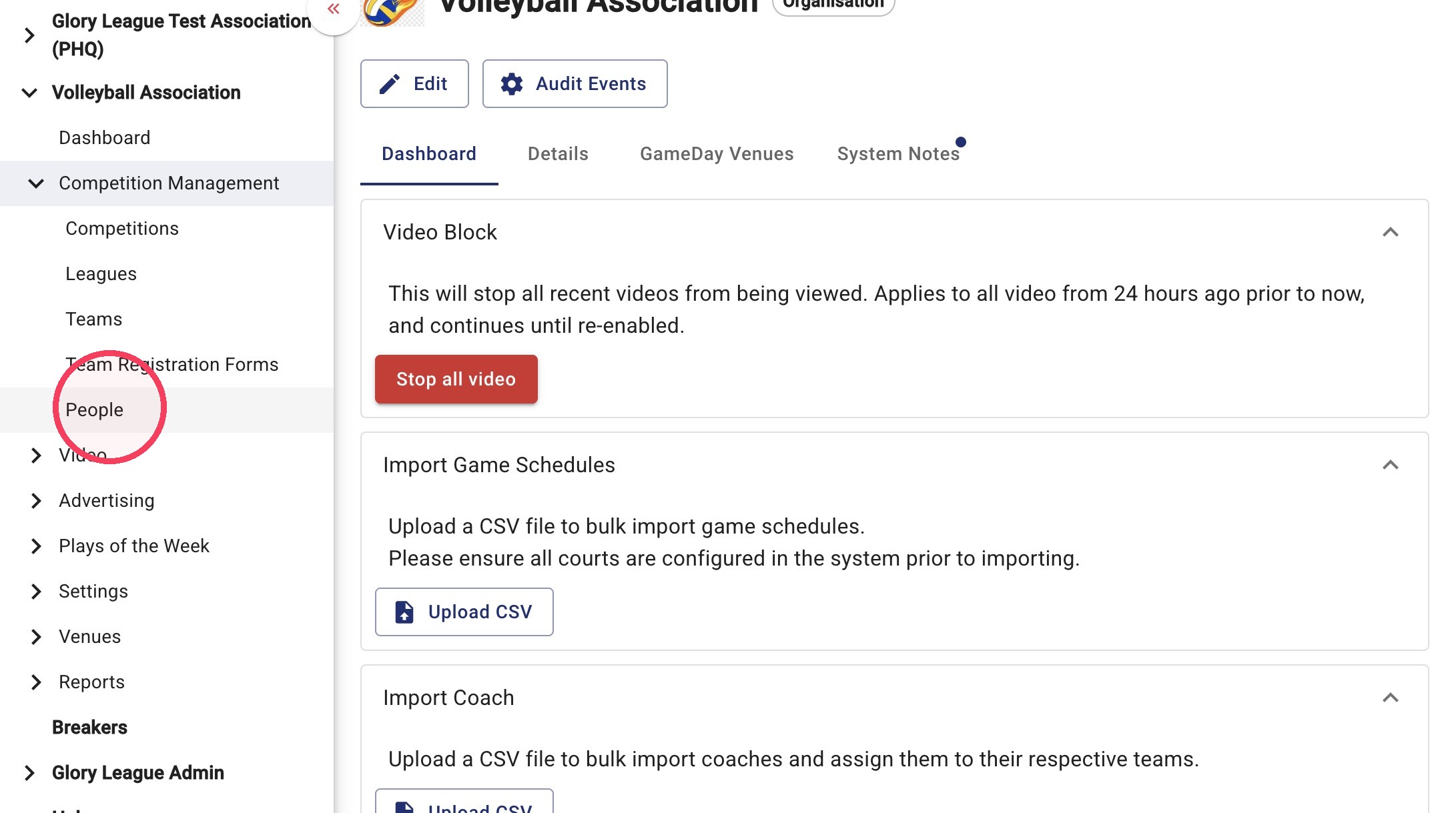
2. Go to Competition Management>People and Import Coaches CSV
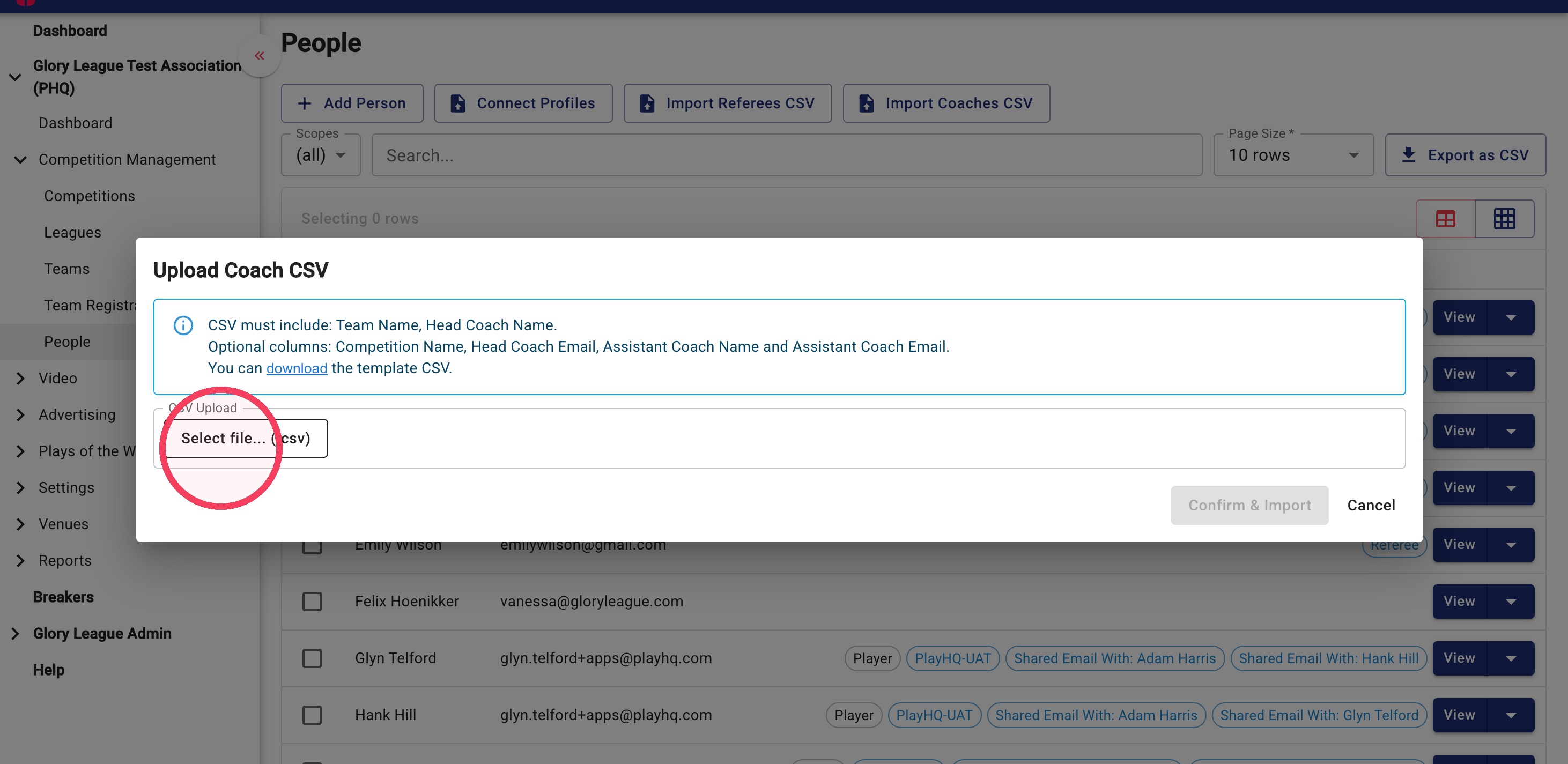
3. Click Select file... (.csv) and choose your completed Coaches CSV file.
4. Review the imported data. If any changes are required, click directly into a field to edit it before importing.
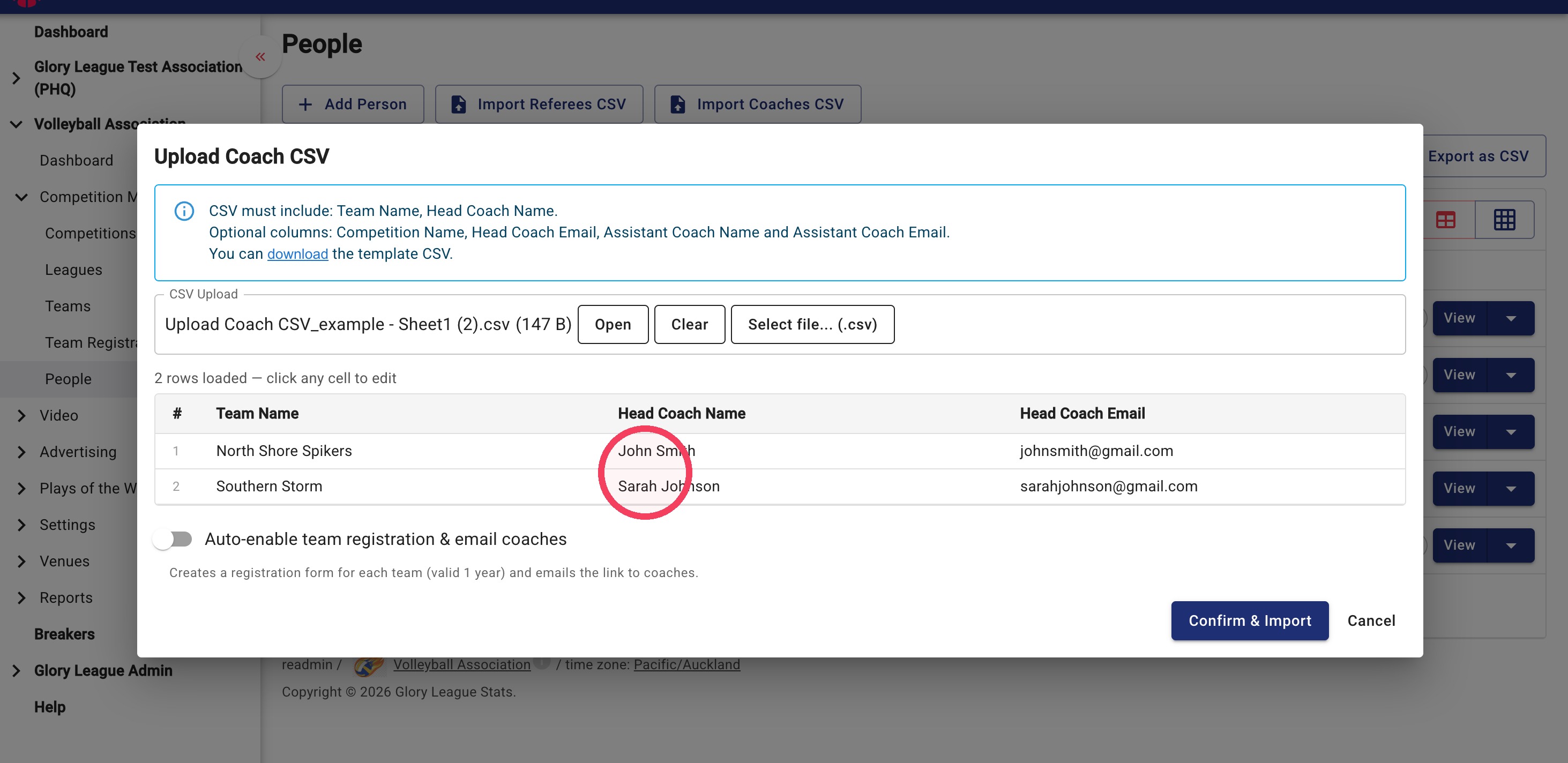
5. Enable Auto-enable Team Registration & Email Coaches\
Turn this option on if you would like each imported coach to automatically receive an email with a link to register and manage their team.
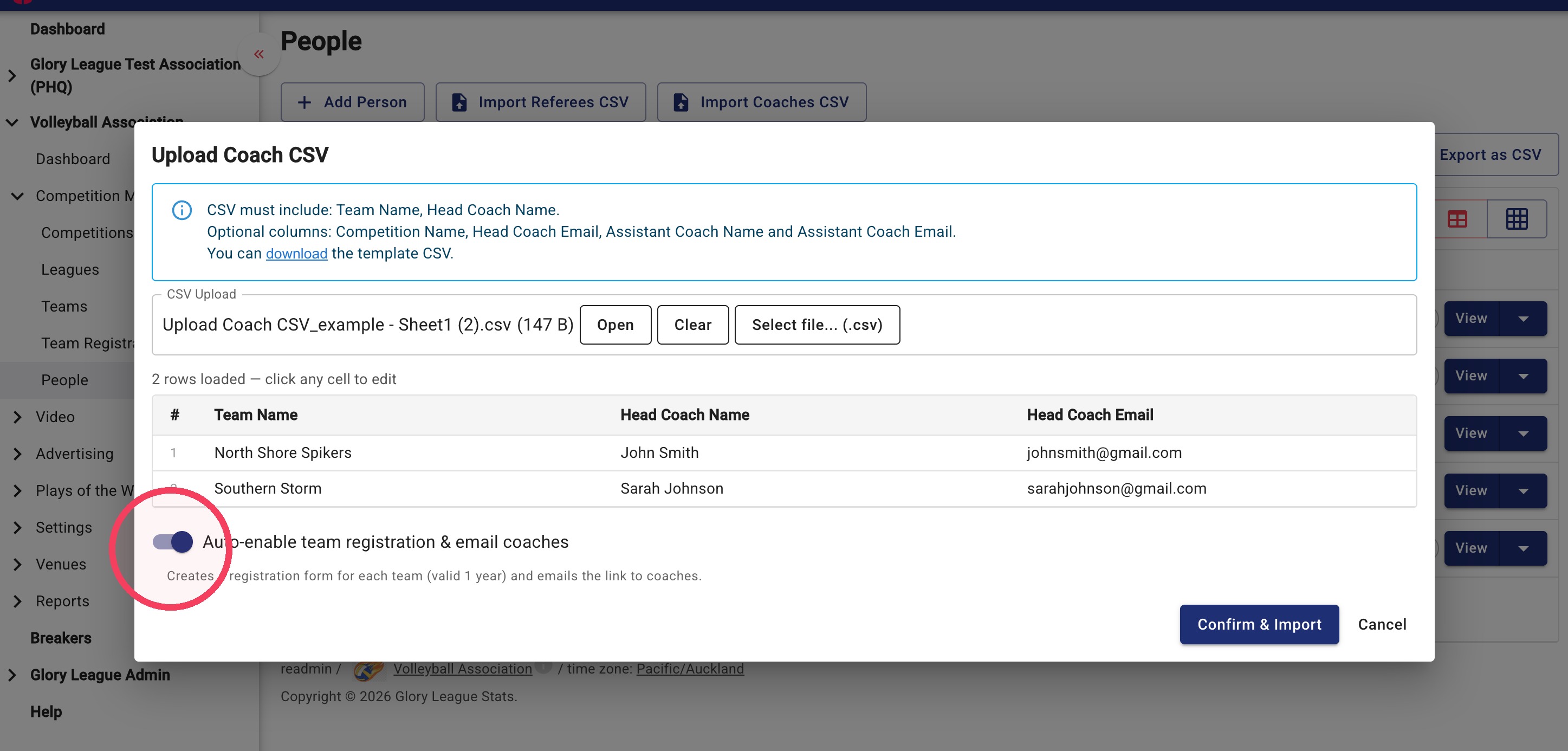
Tip: Example email and registration form coaches receive to register and manage their teams.
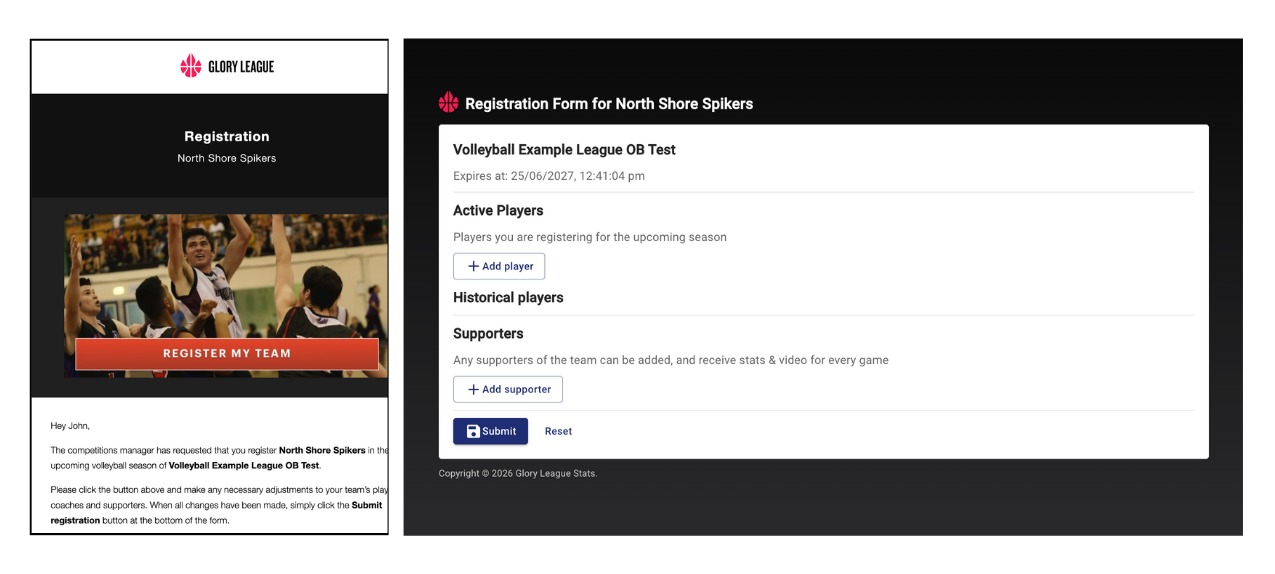
6. Click Confirm & Import when you are ready to import your data.
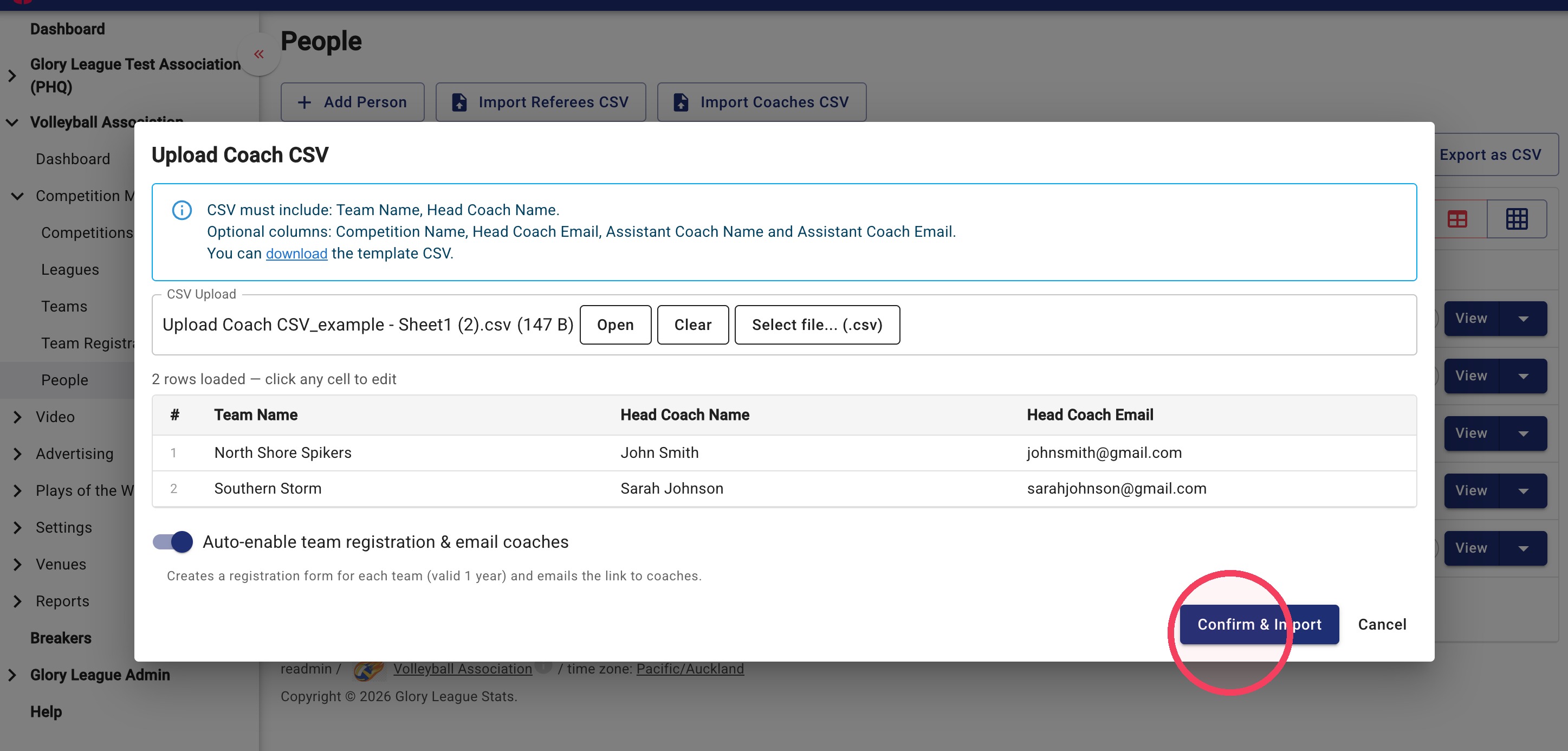
7. Click Done once the import has been completed.
How To View Imported Coaches
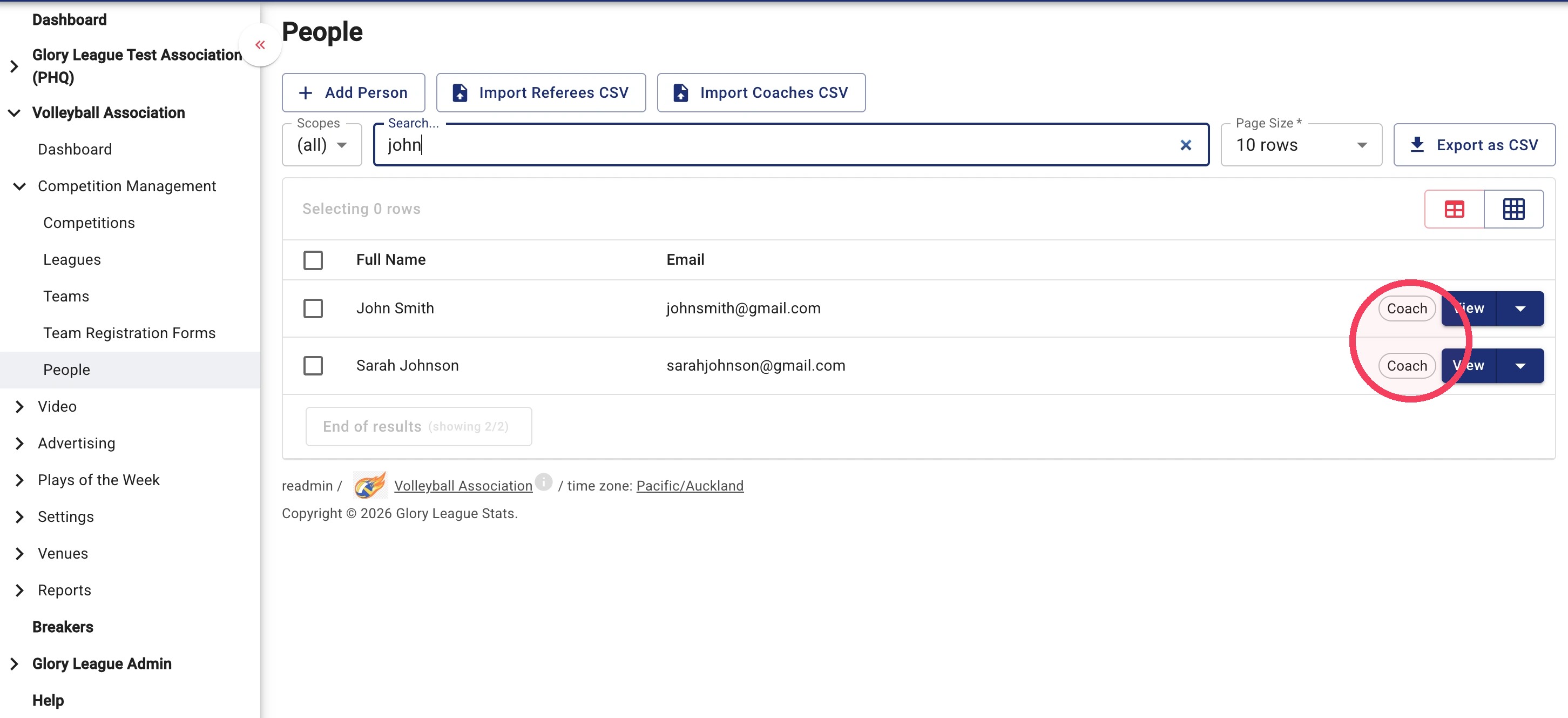
8. Under Competition Management select People from the menu.
9. Search for the coach. The coach tag will appear on their profile once they have been imported successfully.