How to Create and Download Incidents
Incident Creation through the Games Page
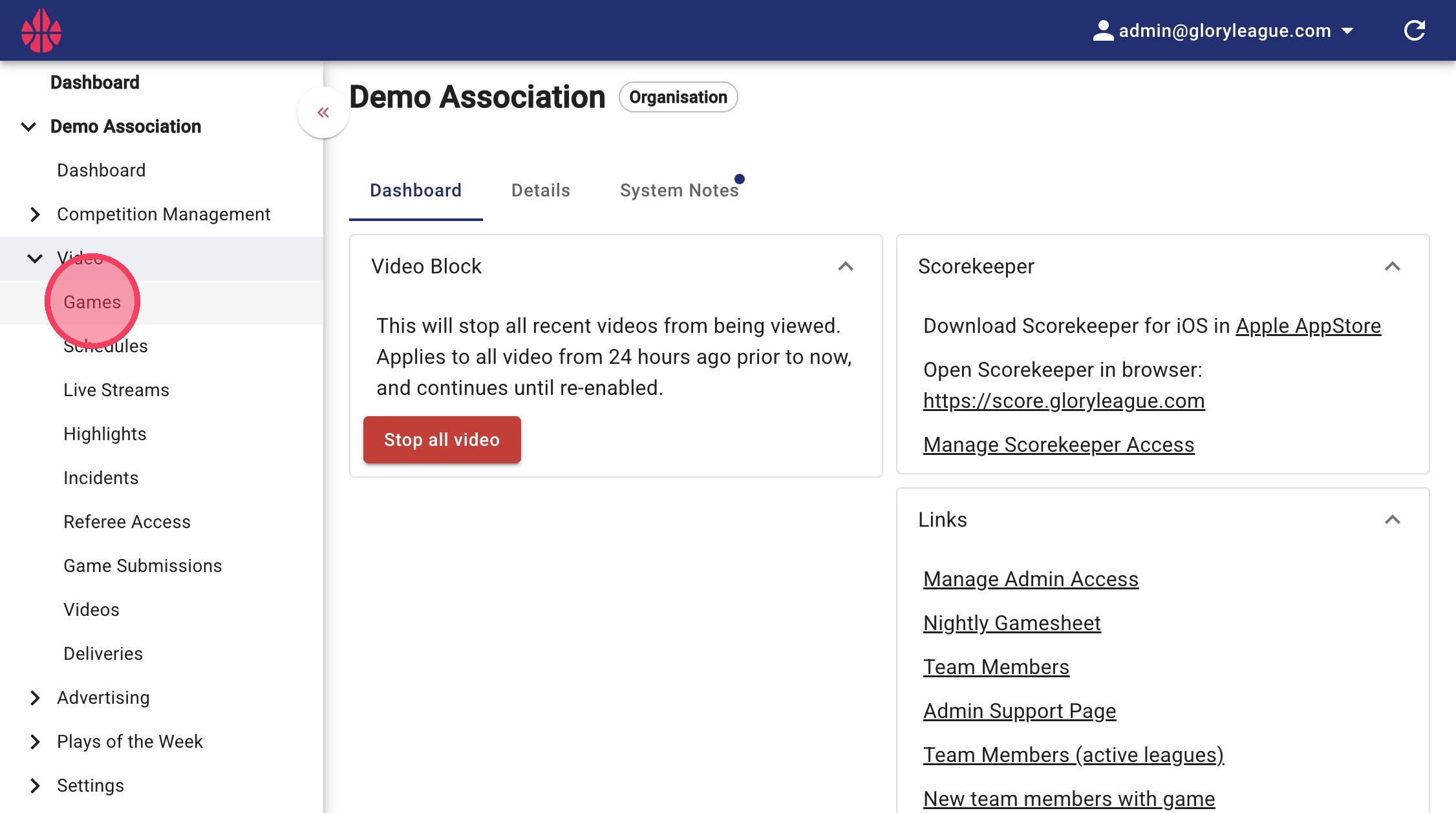
1. Click into the Games page under the Video dropdown.
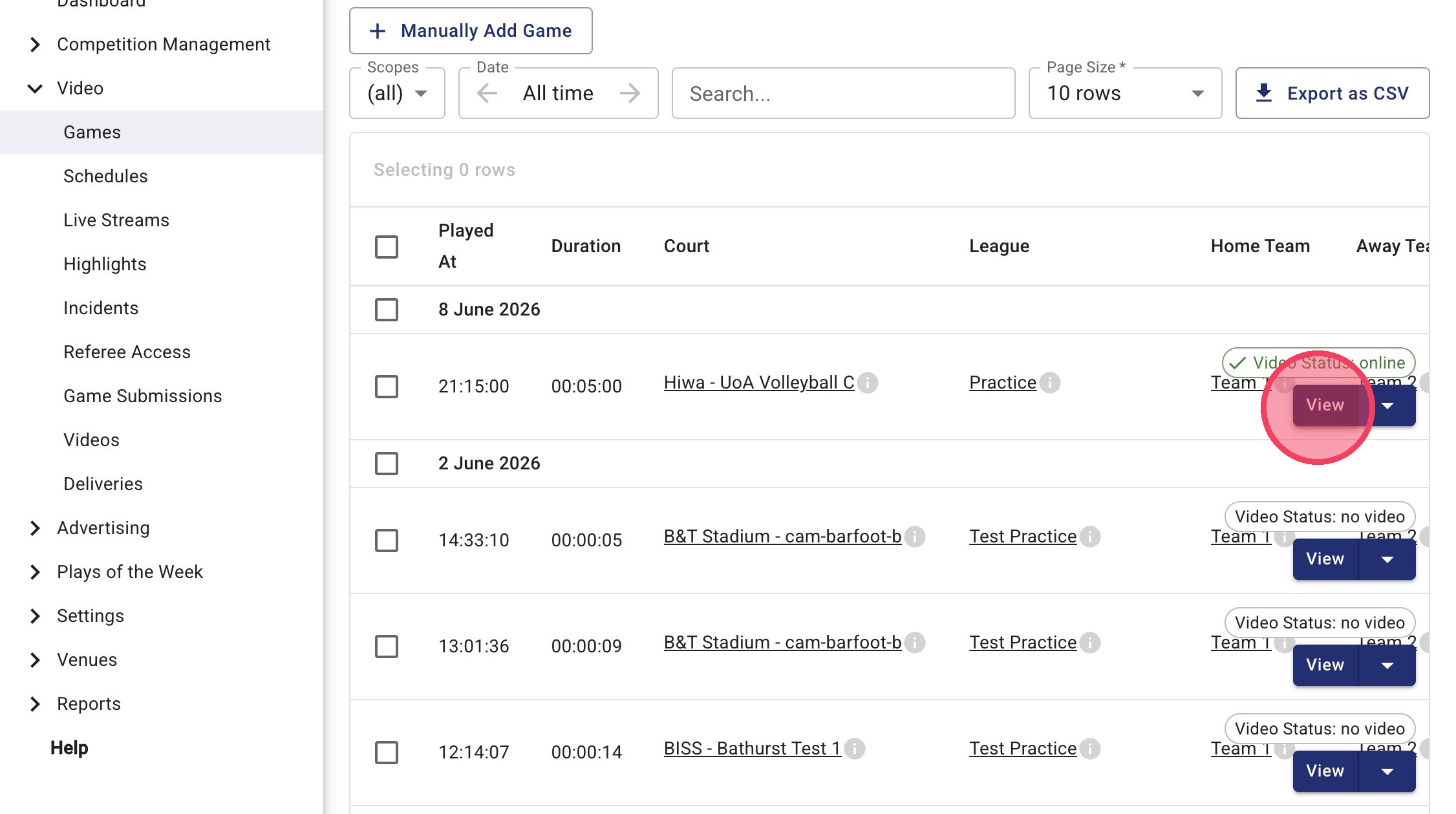
2. Click View on the relevant game.
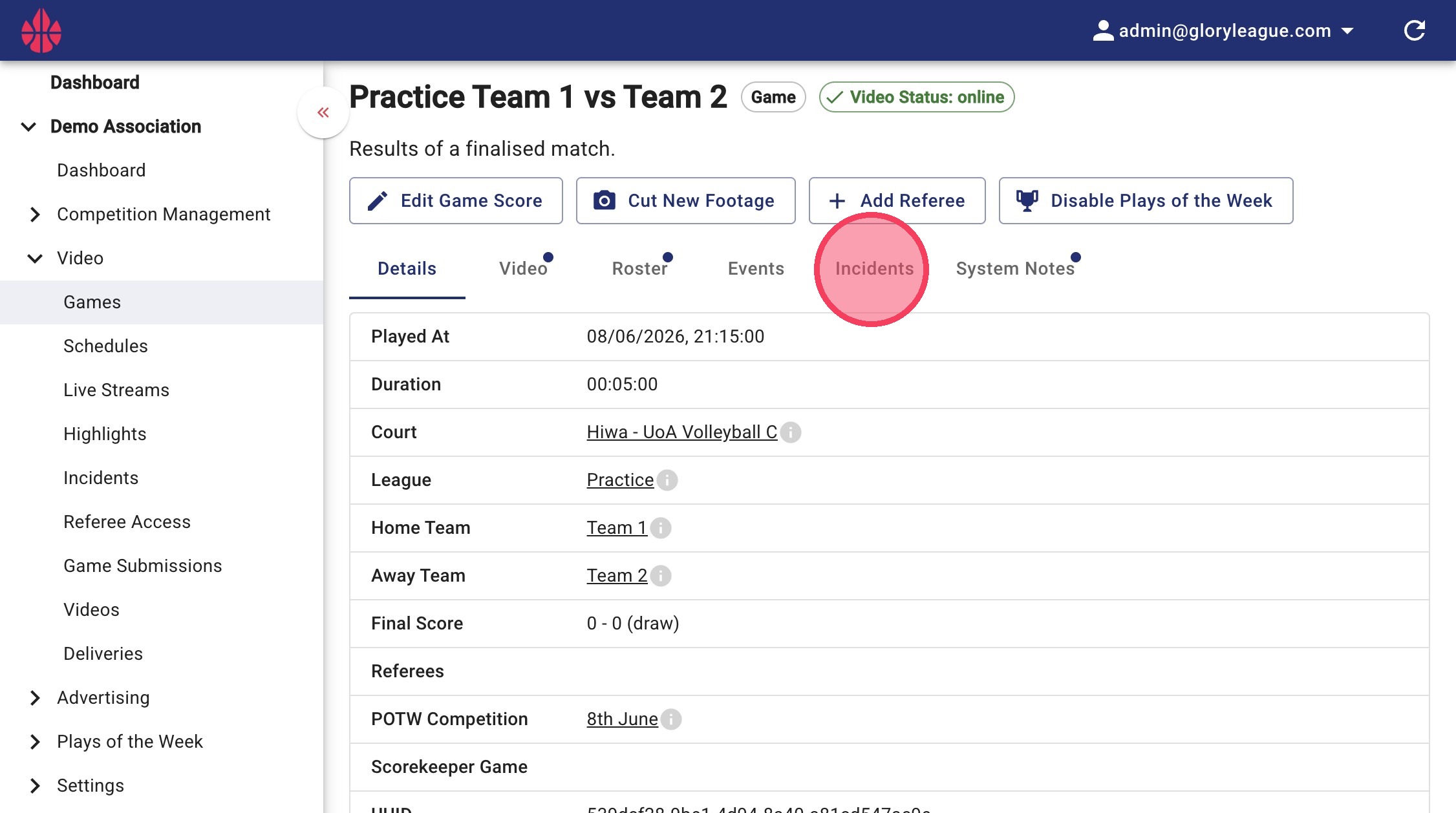
3. Click the Incidents tab.
4. Click Add Incident.
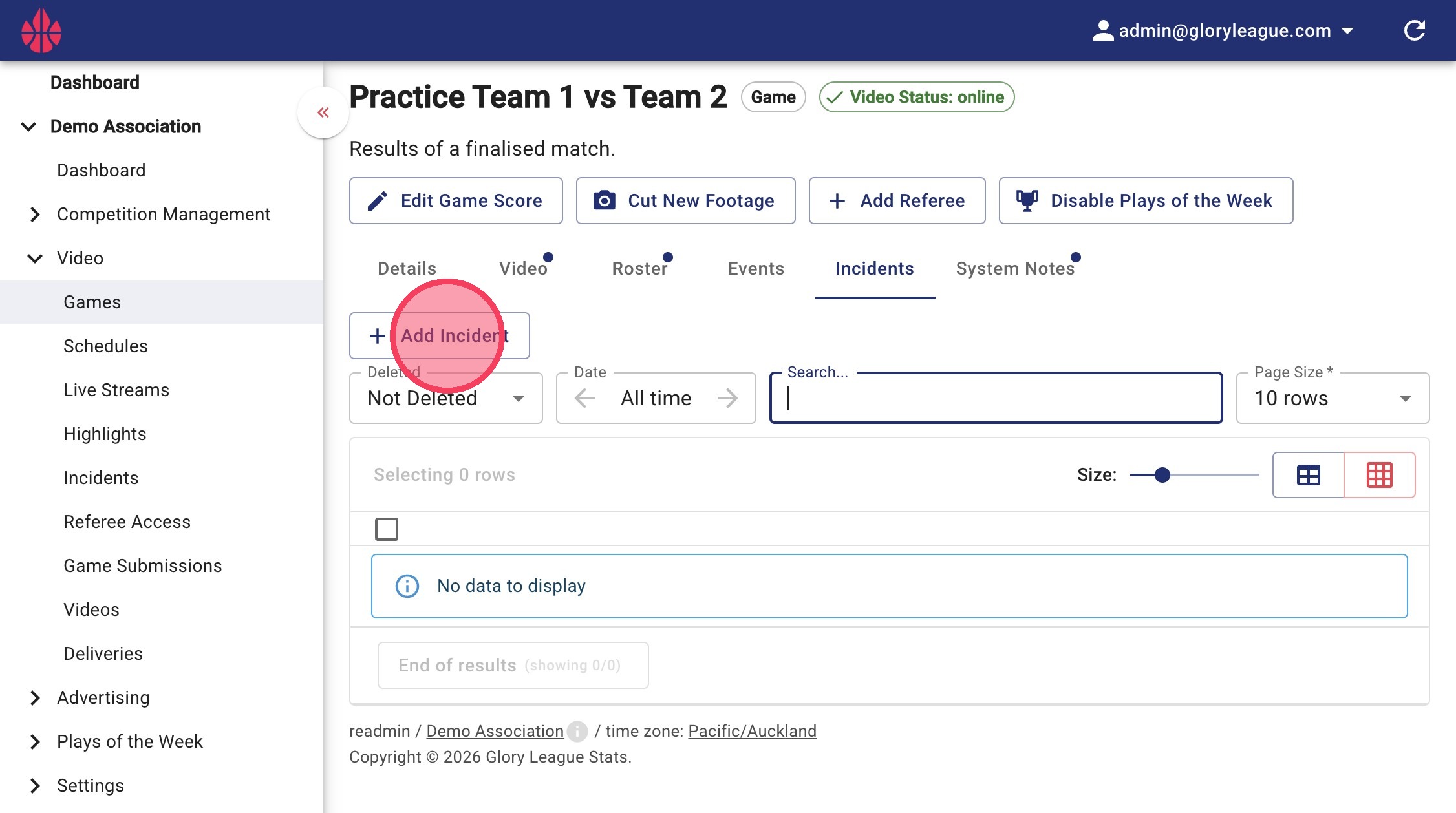
5. Set the Incident Start Time and Incident Stop Time for your your incident clip.
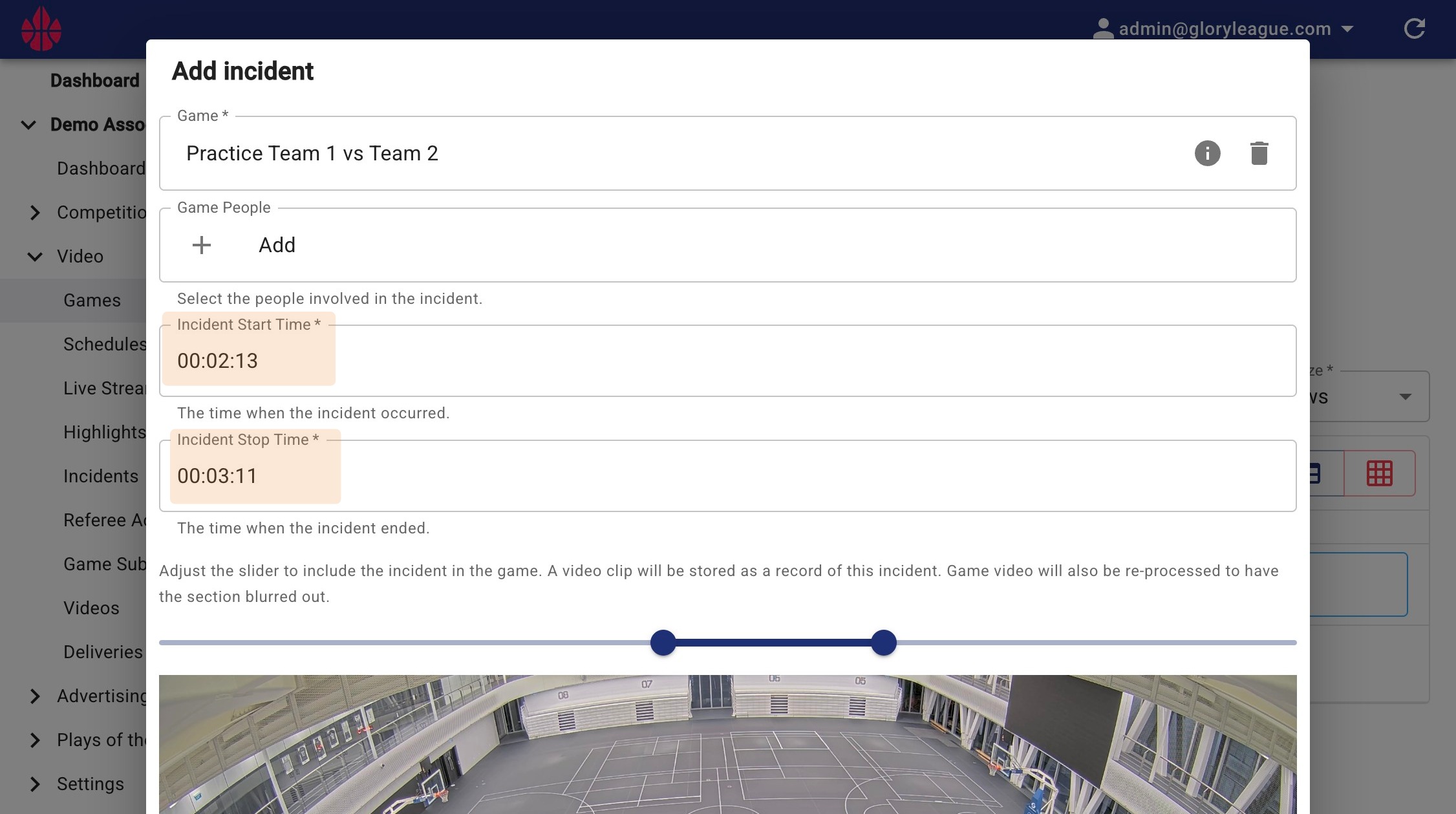
6. Alternatively, drag the sliders to set the incident time.
The video below shows a preview of the incident.
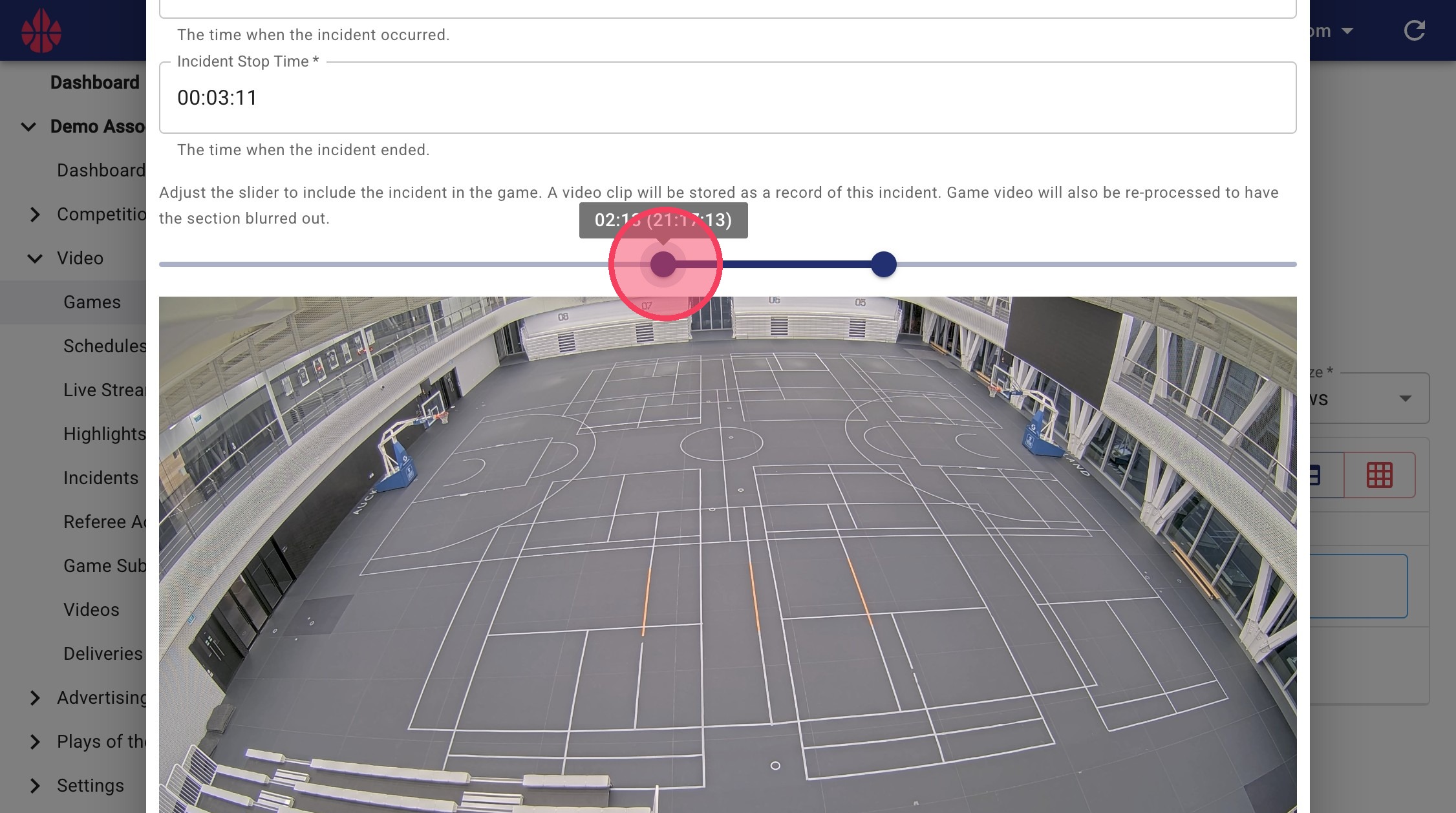
7. Name your incident in the Category field.
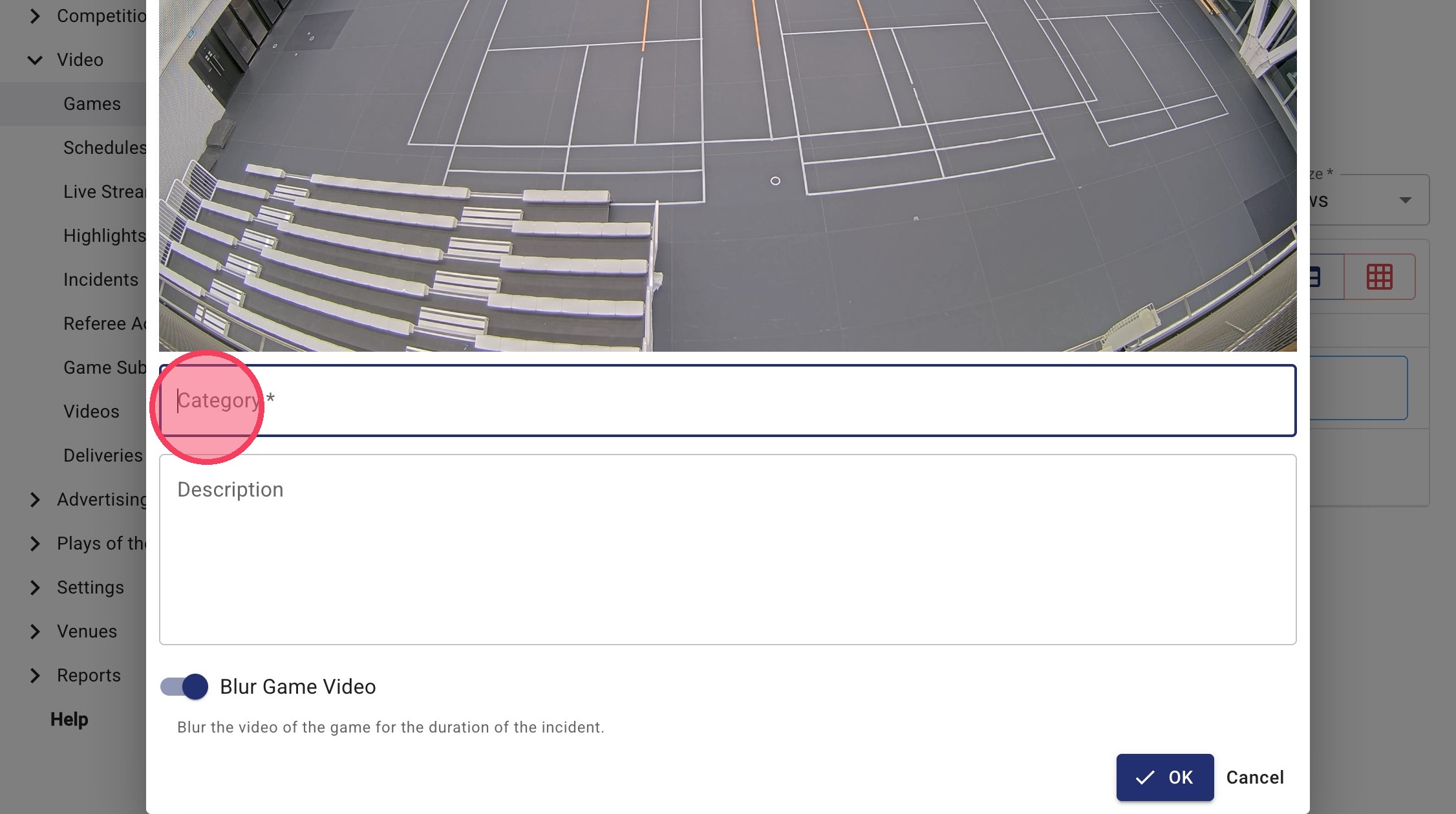
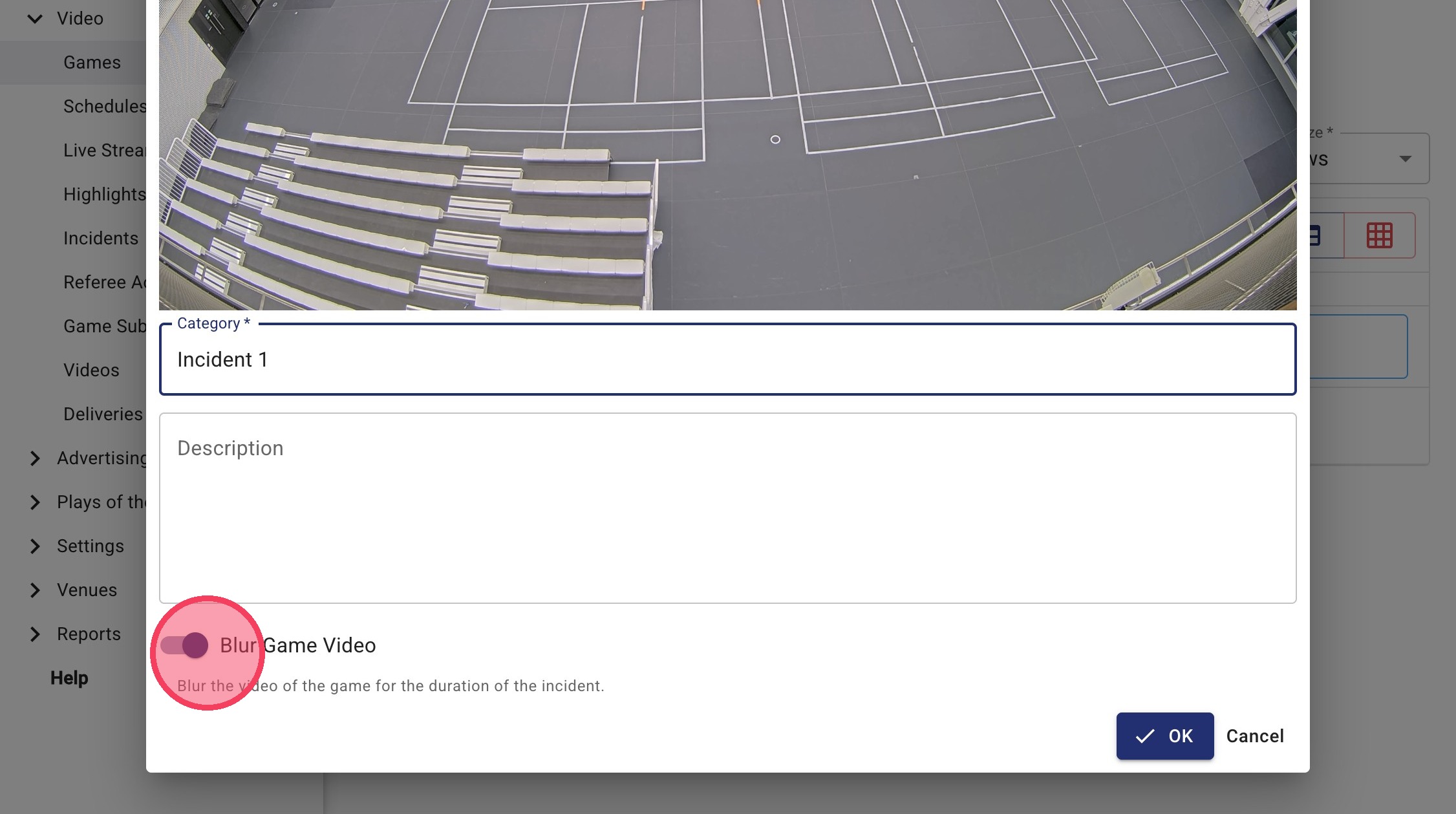
8. Choose whether to enable or not to enable the Blur Game Video toggle.
Enabling the toggle will blur the section of the game video which the incident covers, allowing you to stop users from watching the incident section without you needing to disable the whole game.
Disabling the toggle will make the full game visible to users.
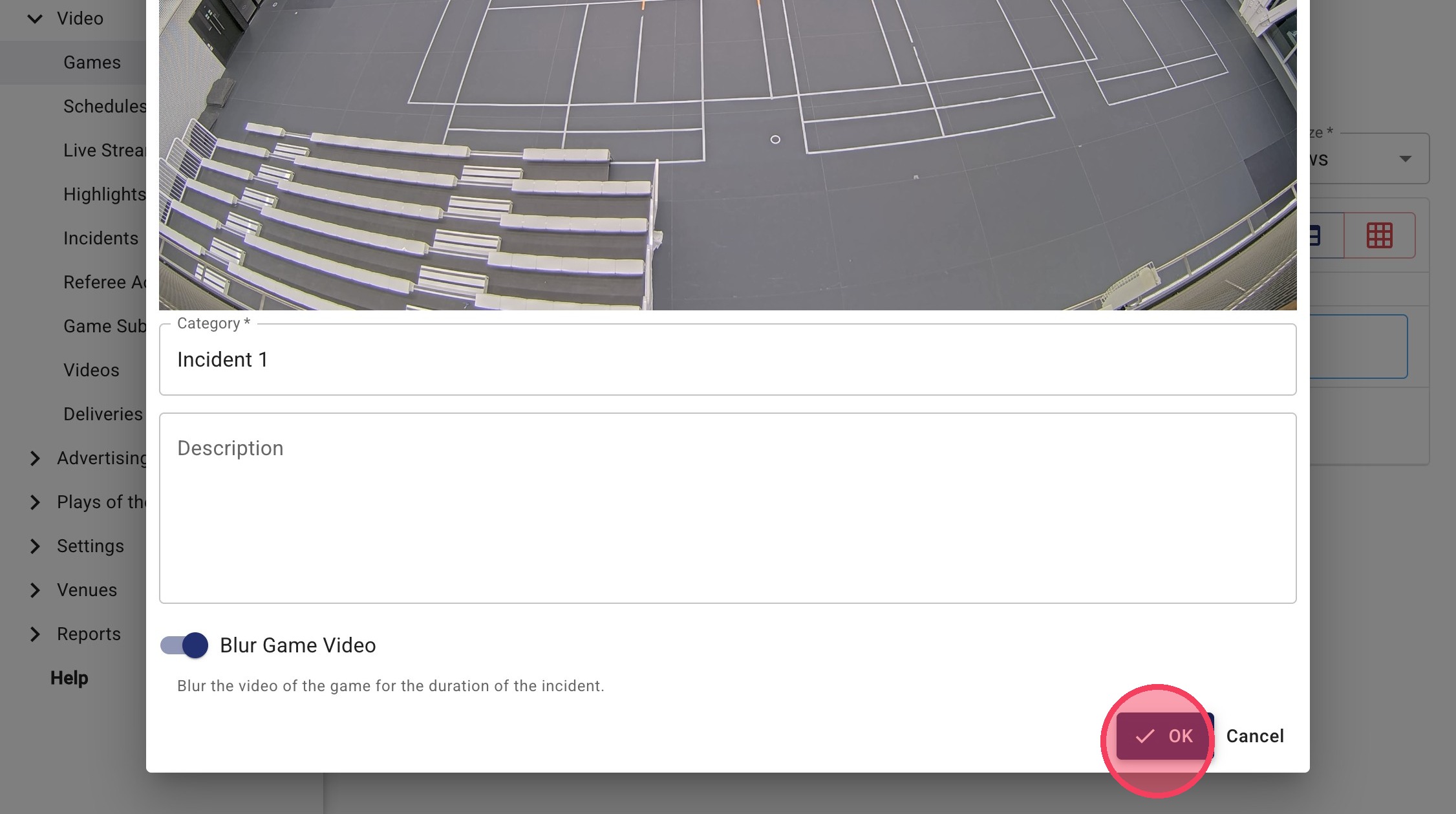
9. Click OK to create the incident.
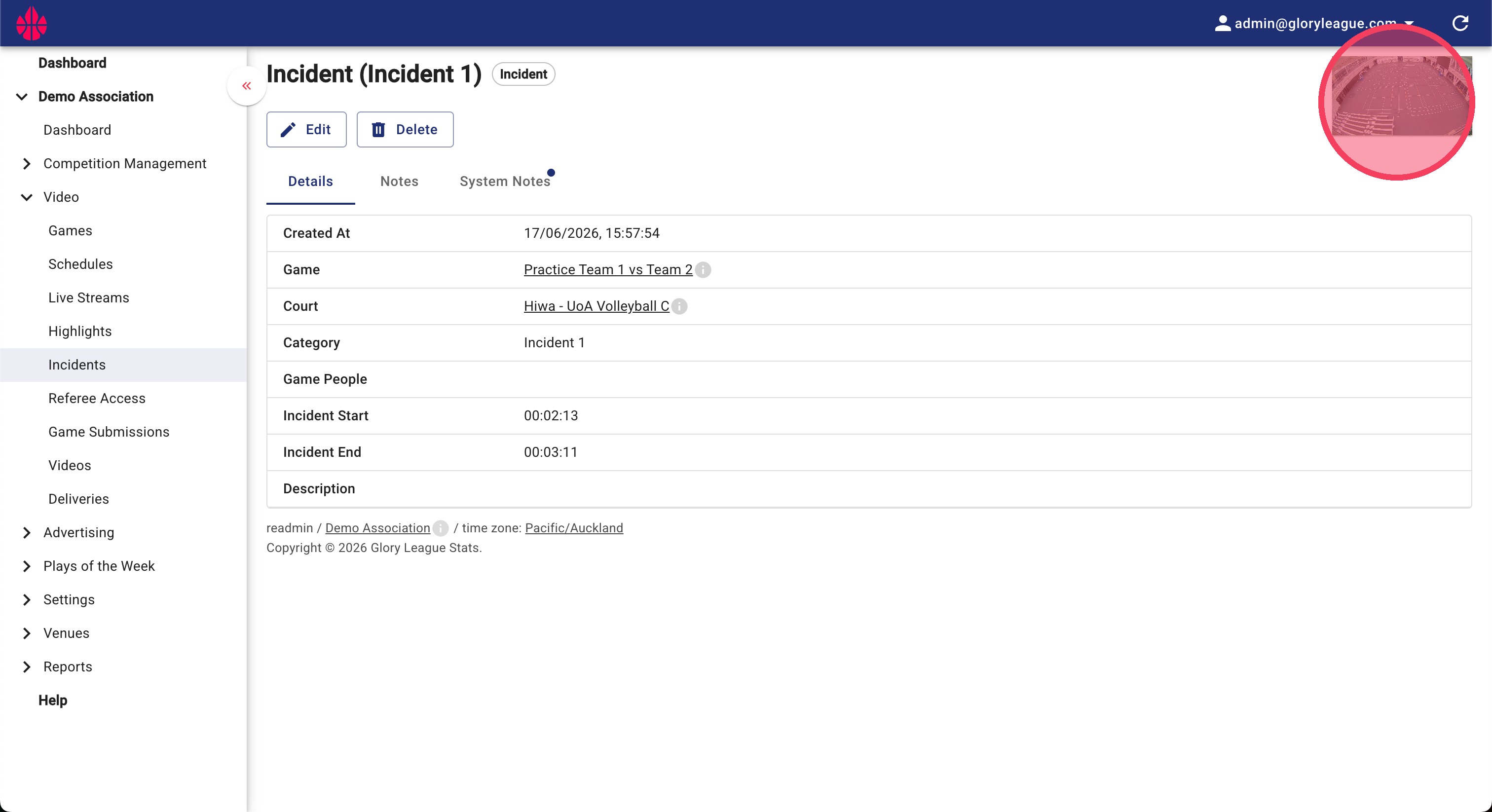
10. Once the game has been re-encoded, your incident video will appear in the top-right of the screen.
Click into the box to download the video.
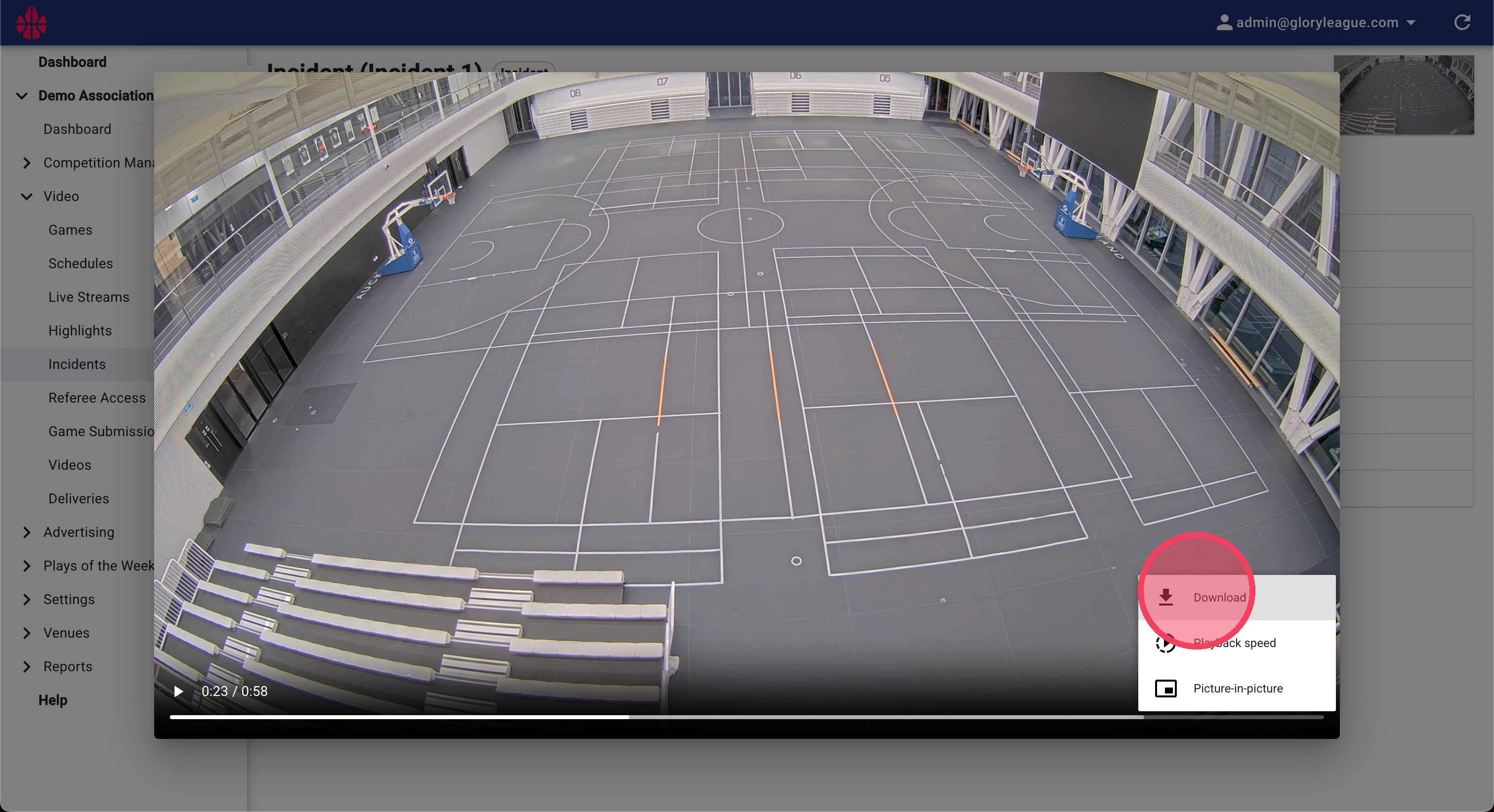
11. Click the three vertical dots in the bottom-right of the video.
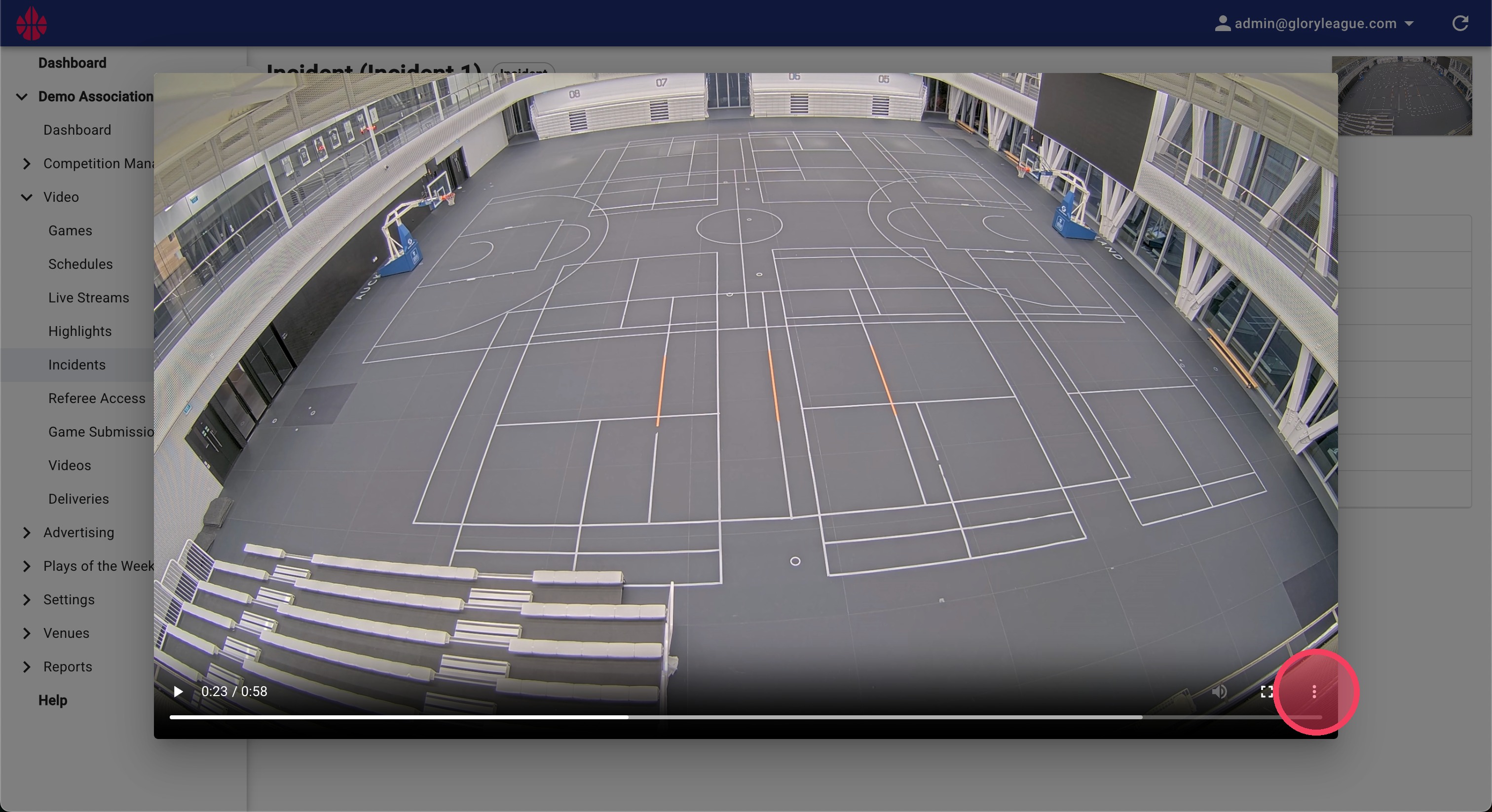
12. Click Download.
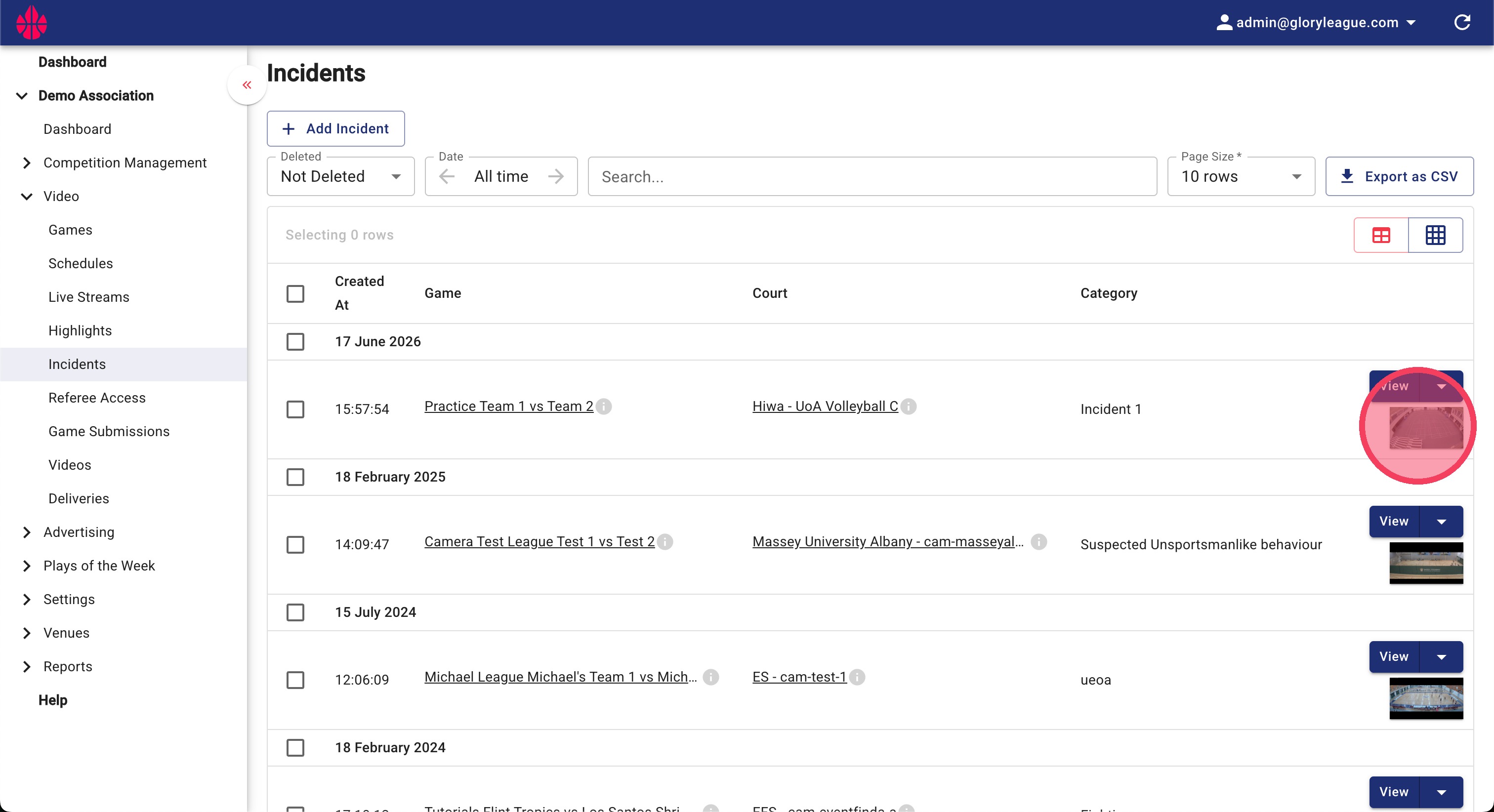
Incident Creation through the Incidents Page
Incidents can also be created through the Incidents page.
To do this, click into the Incidents page under the Video dropdown
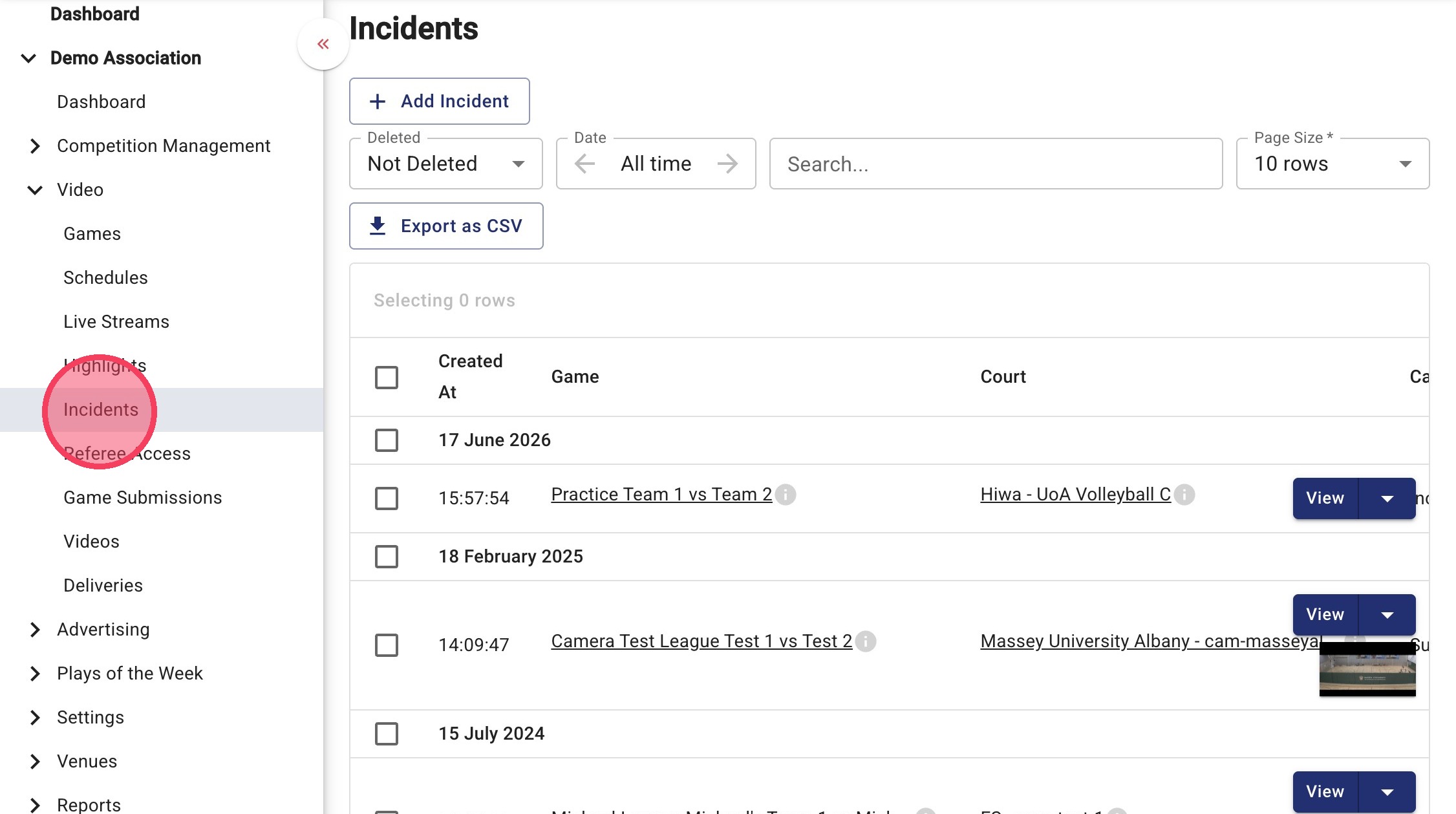
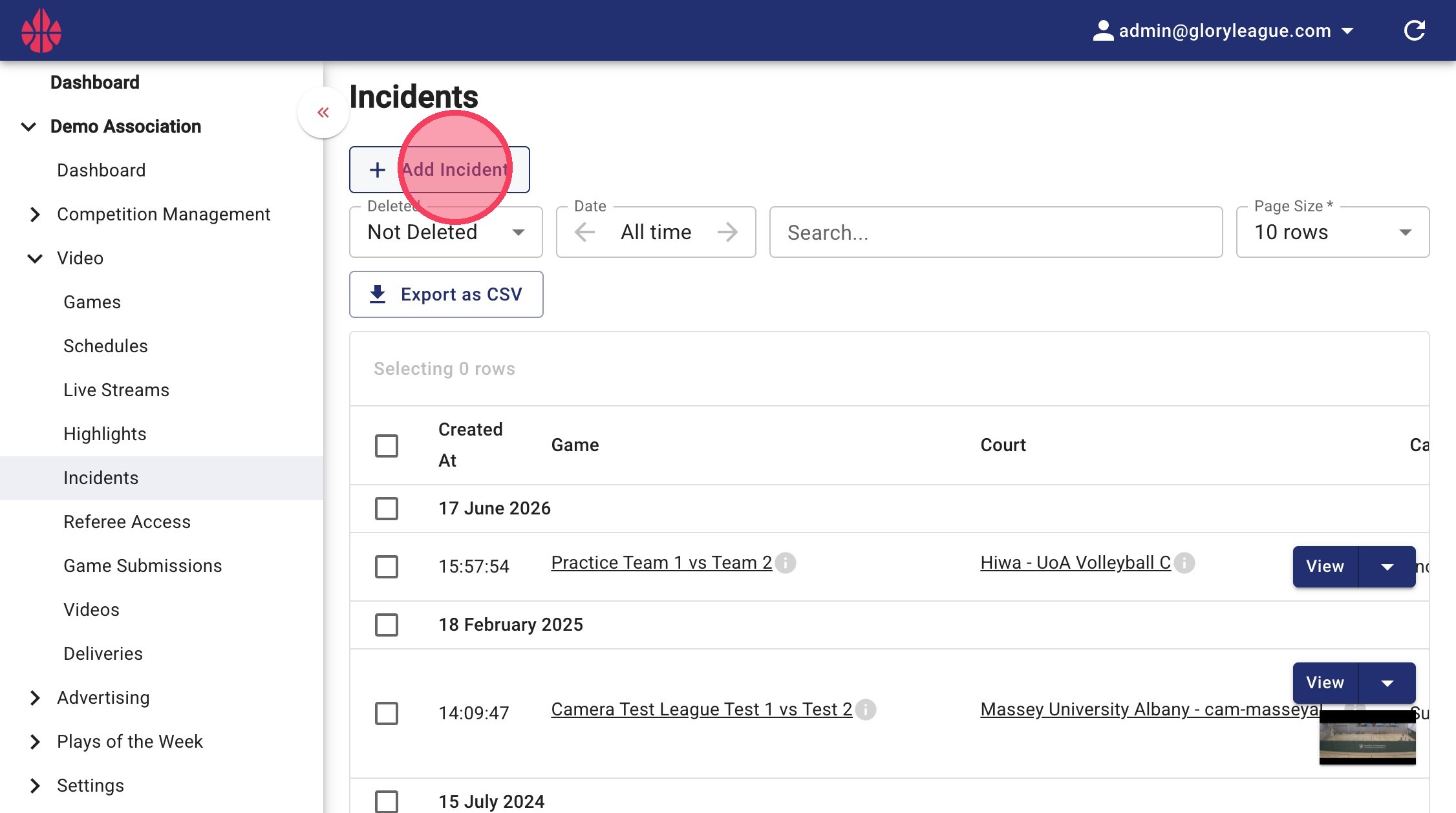
14. Click Add Incident.
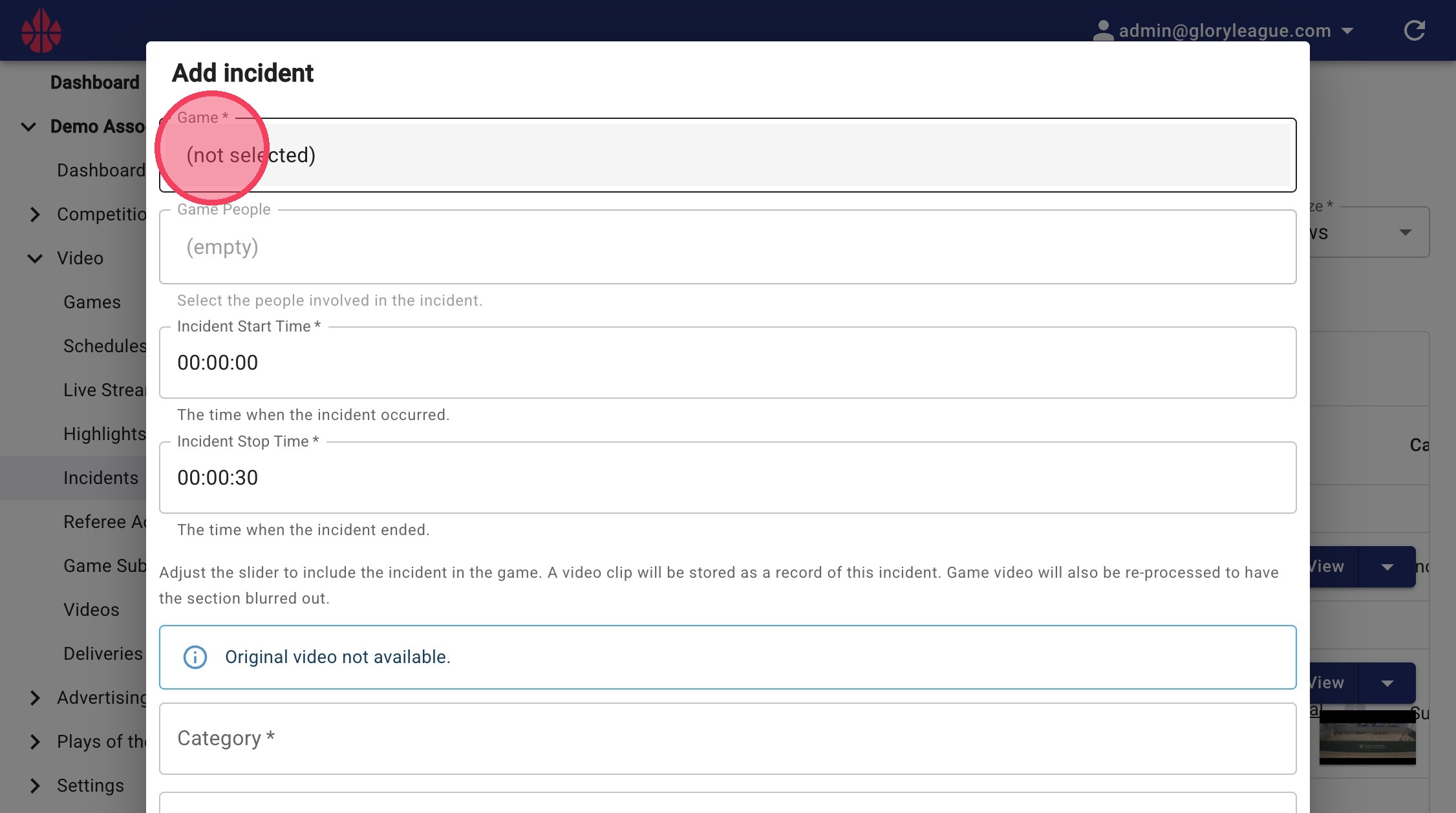
15. Click into the Game field to select the relevant game.
From here, follow the same instructions as above.
16. Once the game has been re-encoded, your incident video will appear on the right of the screen.
Click into the box and follow the same instructions as above to download the incident clip.