How to Import Game Schedules via a CSV File
This guide explains how to prepare and upload a Game Schedule CSV file into Glory League.
CSV File Preparation
1. Before uploading your schedule:
- Download and complete the Game Schedule CSV template.
- Ensure the CSV headers and data match the required template.

Tip: The Court Name in your CSV file must exactly match a court that has already been created for your organisation. Game schedules cannot be imported if the court names do not match. Click the link below to view your available court names.
Upload the CSV file
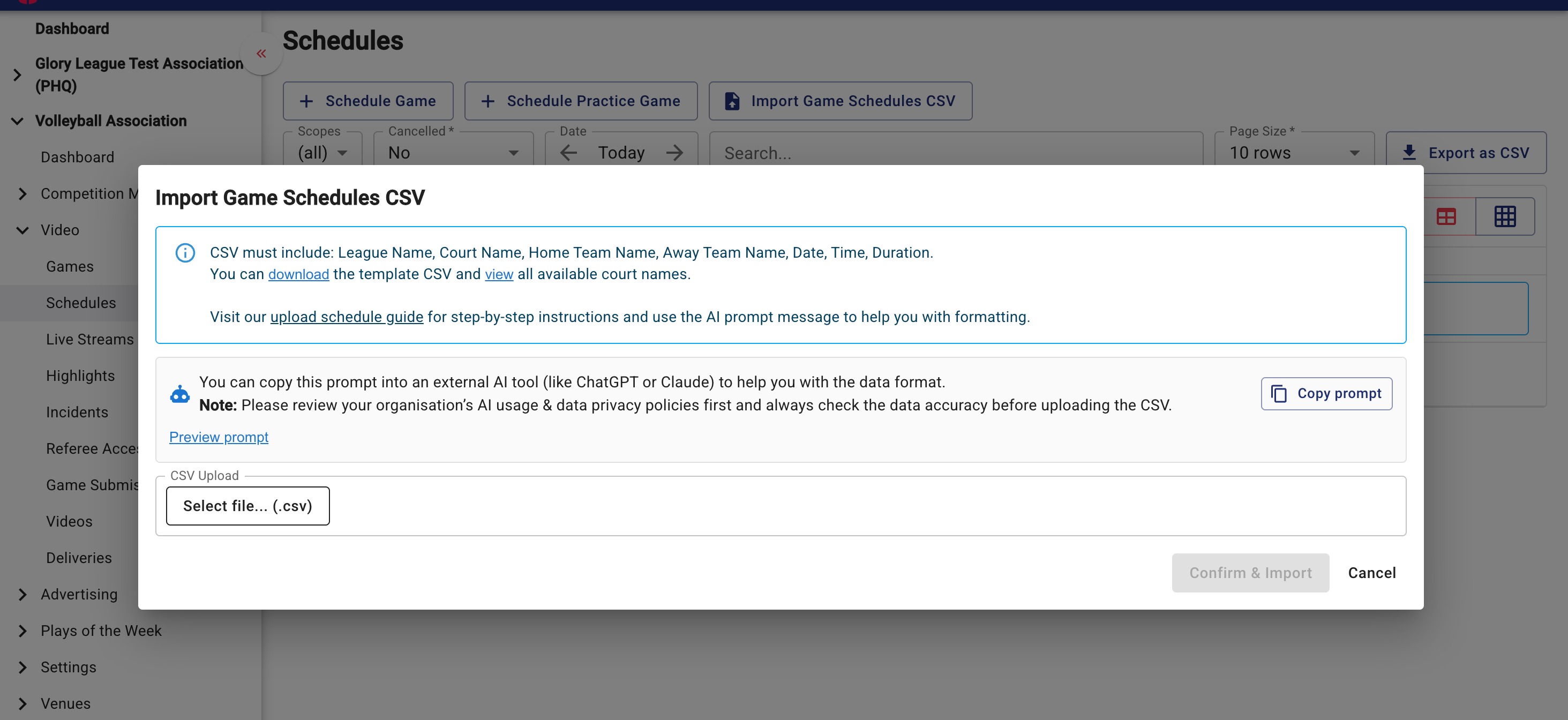
2. From your organisation dashboard, go to Video>Schedules and click Import Game Schedules CSV.
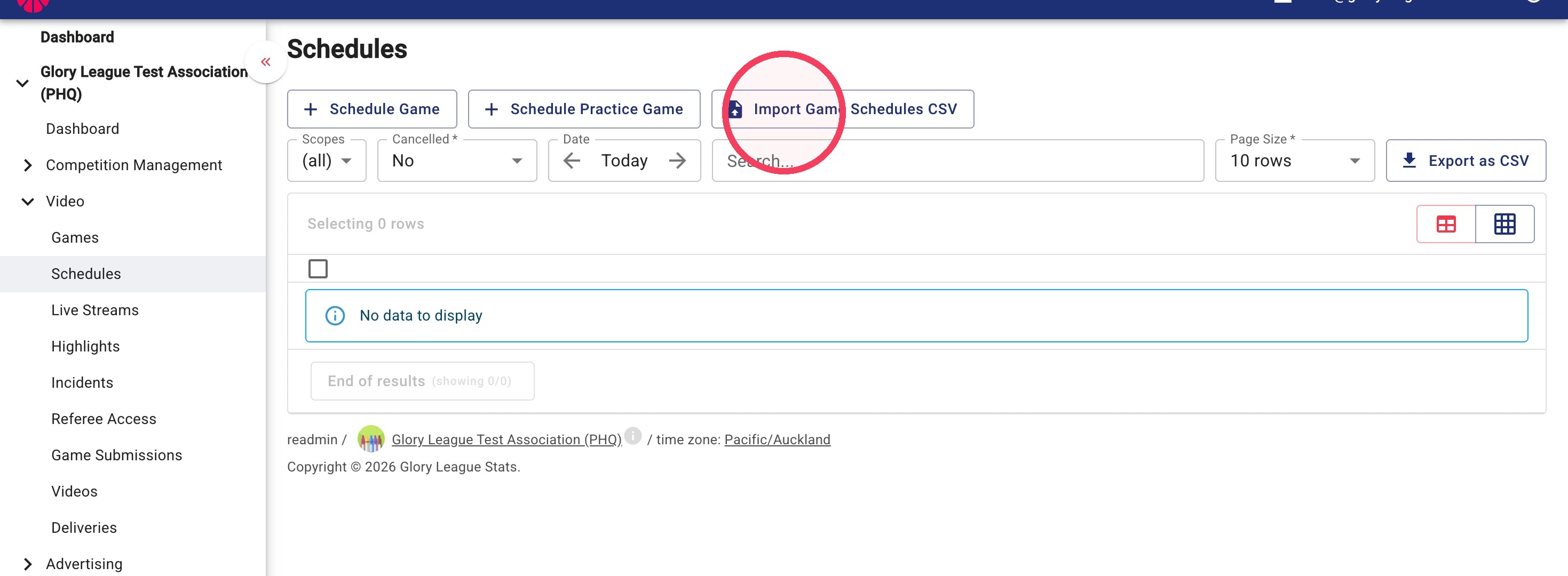
3. Click Select file... (.csv).
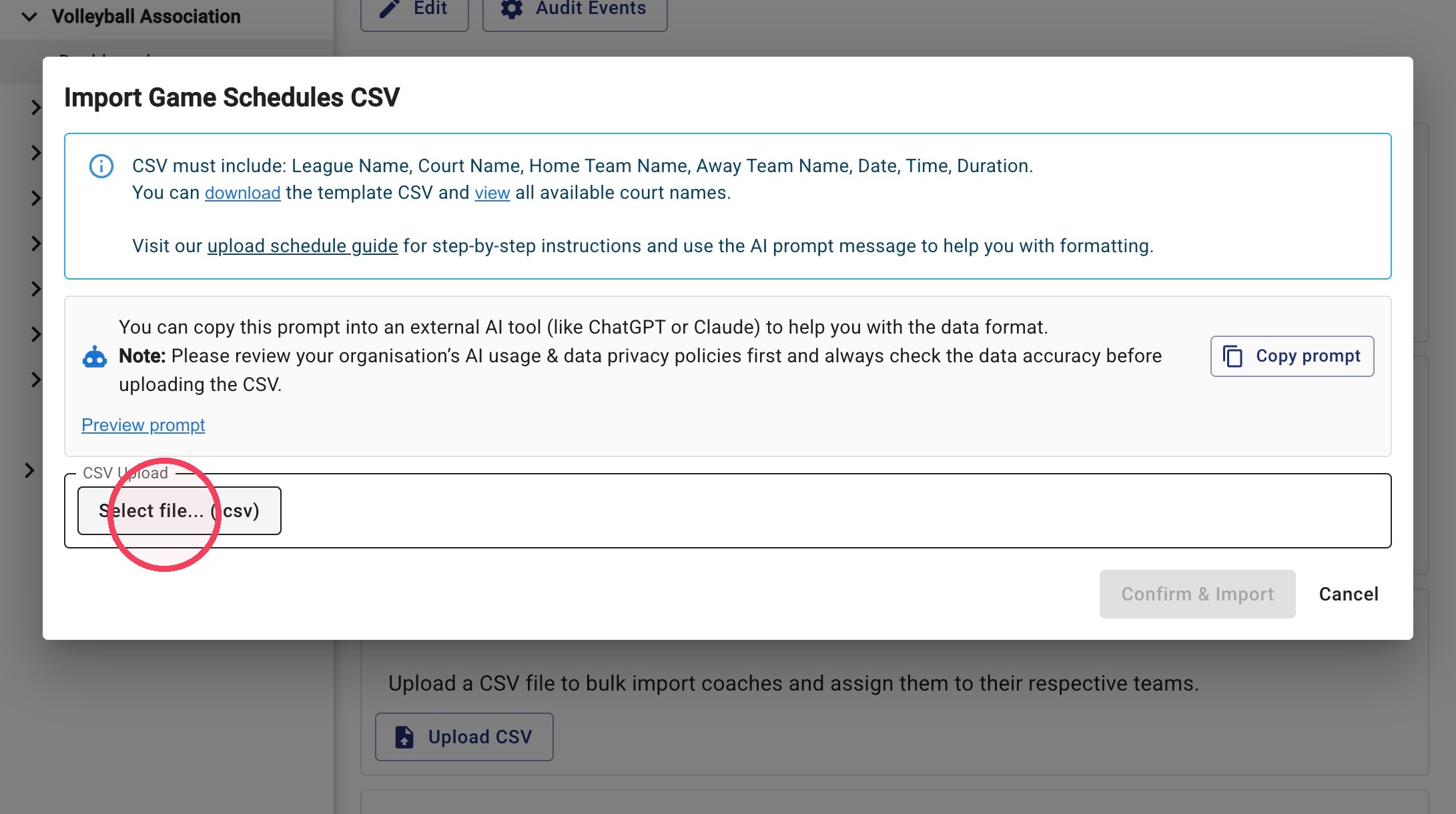
4. Review the imported data. If any changes are required, click directly into a field to edit it before importing.
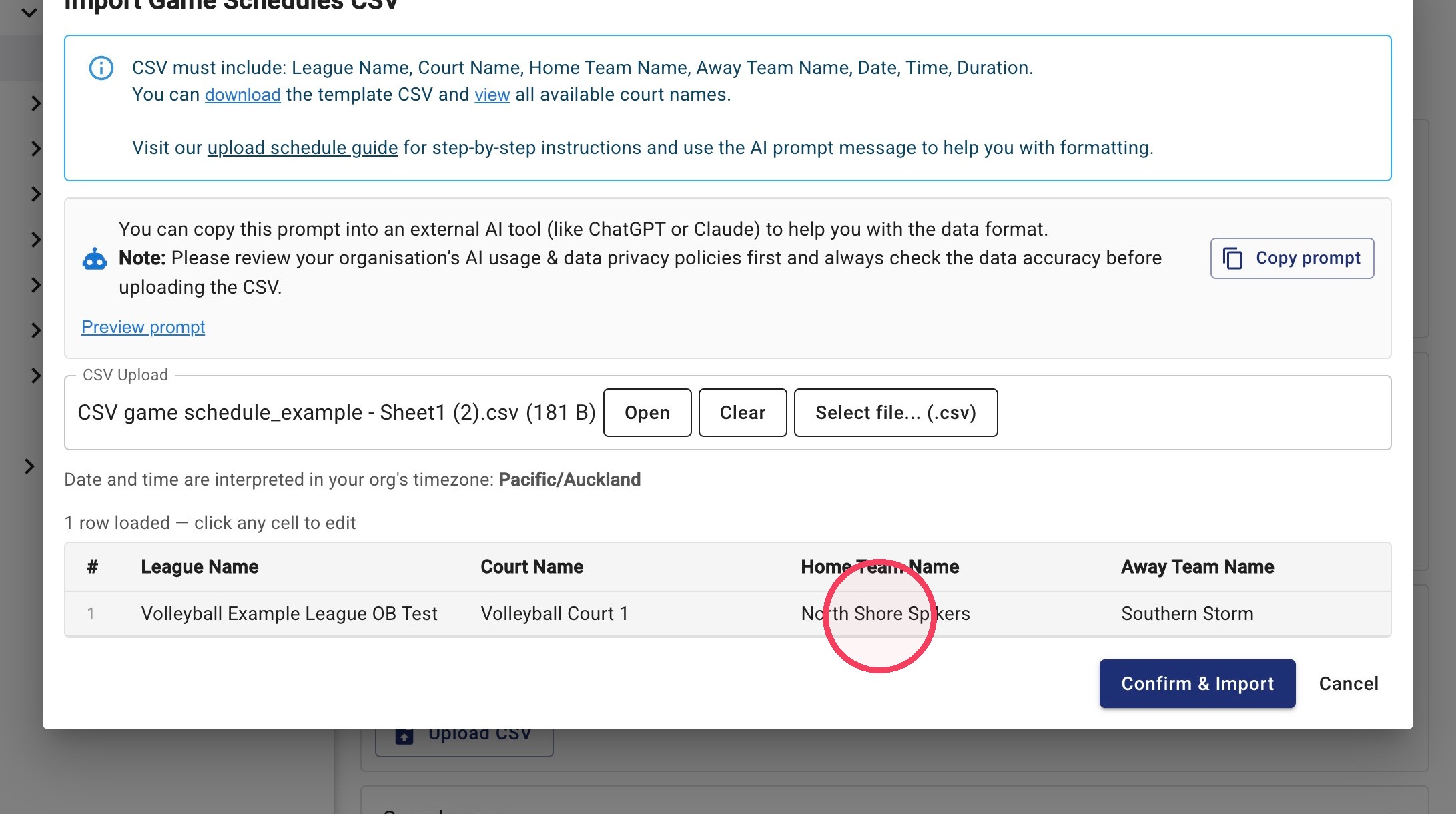
5. Once you're happy with your data, click Confirm & Import.
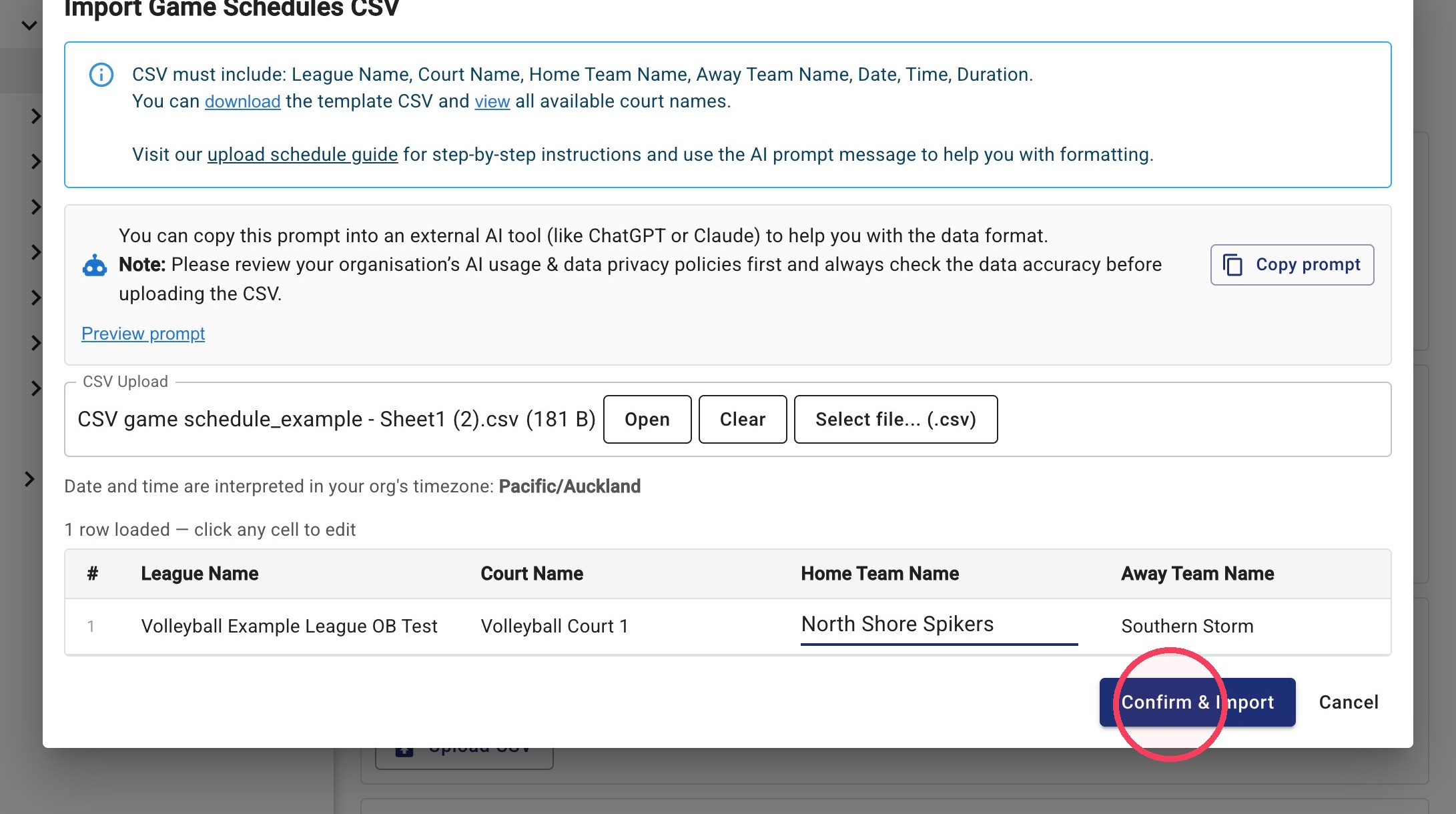
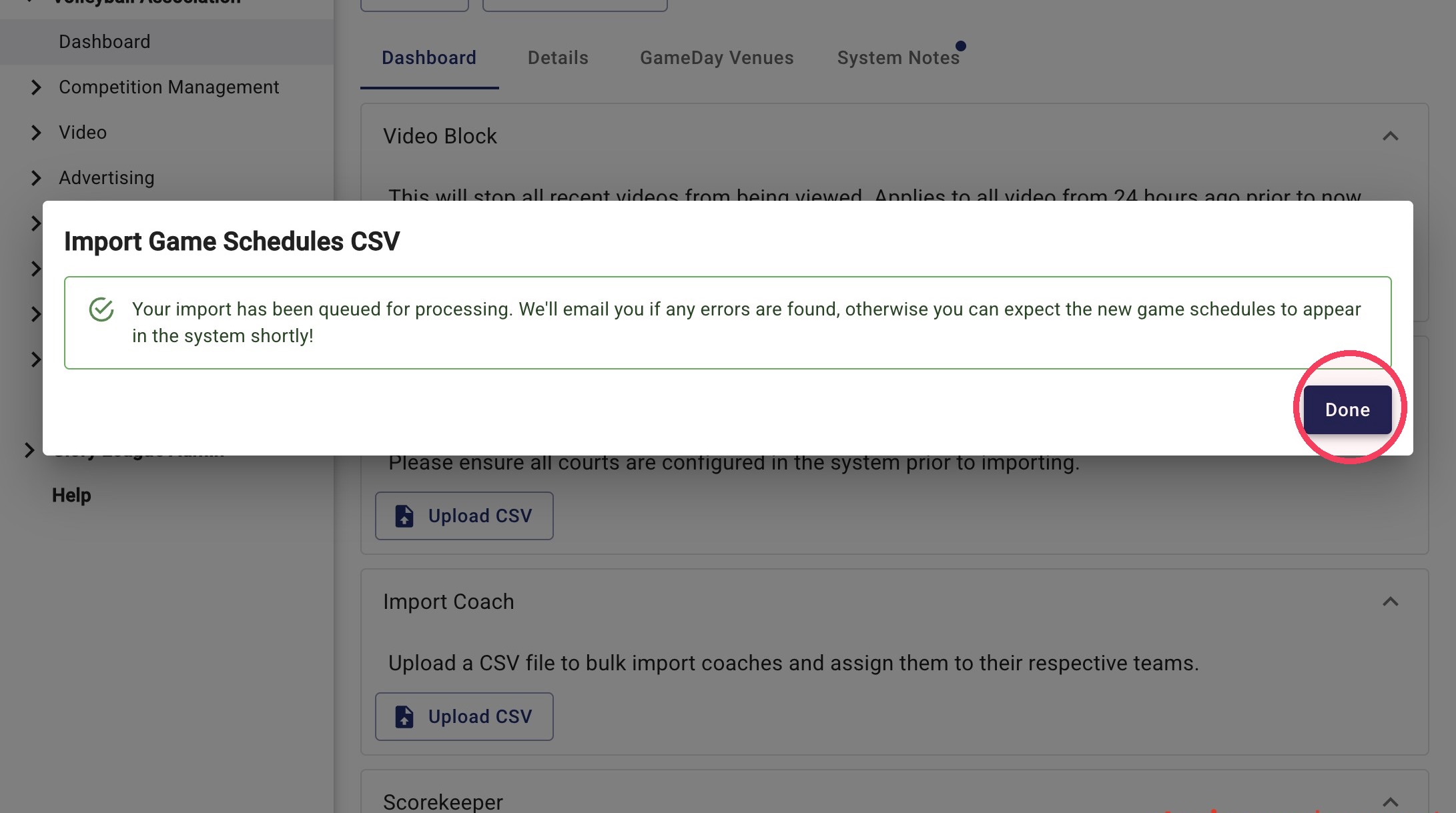
6. Your game schedules will begin importing.
If any errors are detected during processing, you'll receive a summary email explaining which rows failed and why. Correct the errors in your CSV file and upload it again.
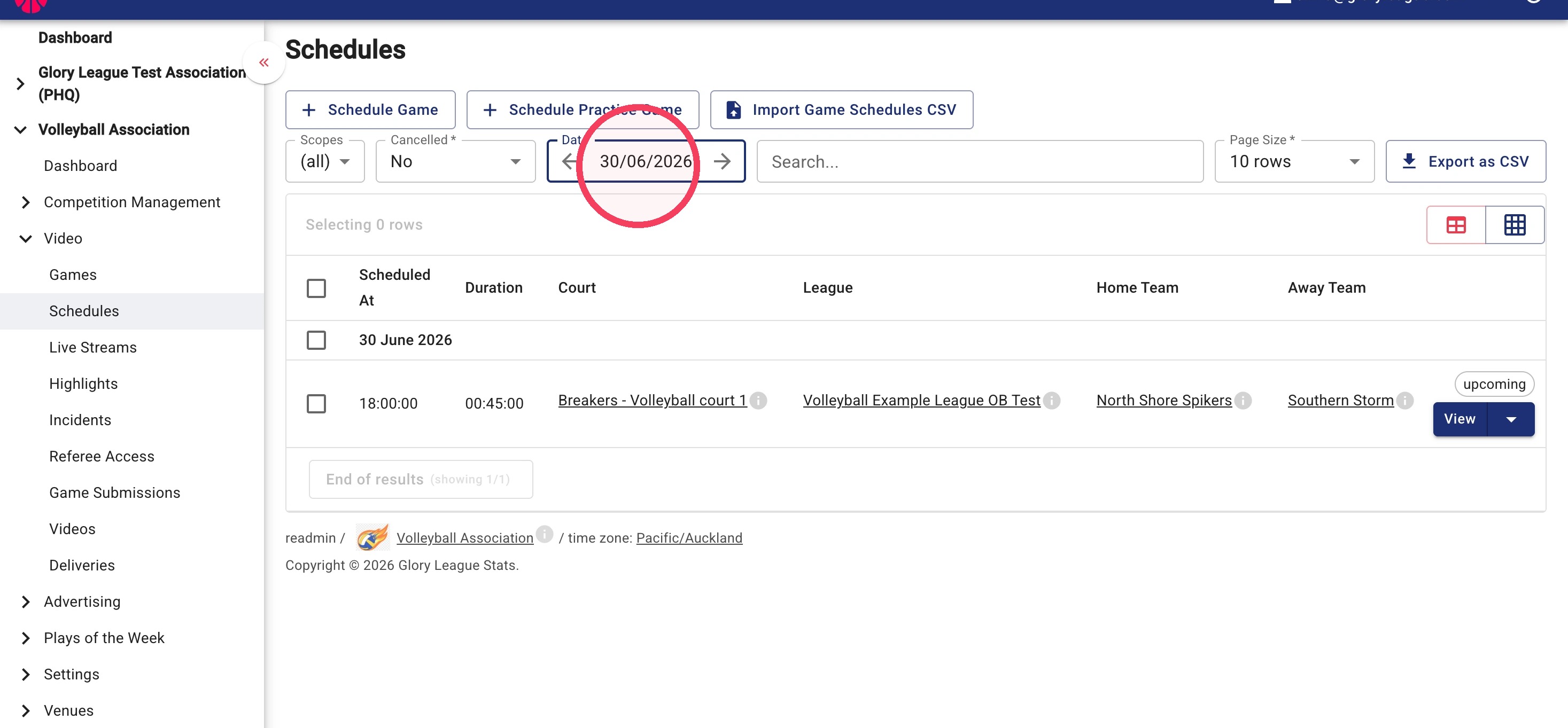
7. Go to Video > Schedules, then search by date to view your imported game schedules.