
Access and Add Missing Game Recordings
This guide provides instructions on how to add missing game recordings through the game schedules page.
Note that this function should only be used when the scoring app was not used, as it does not import game events. By following this guide, admins can easily ensure that all game recordings are accounted for and accessible.
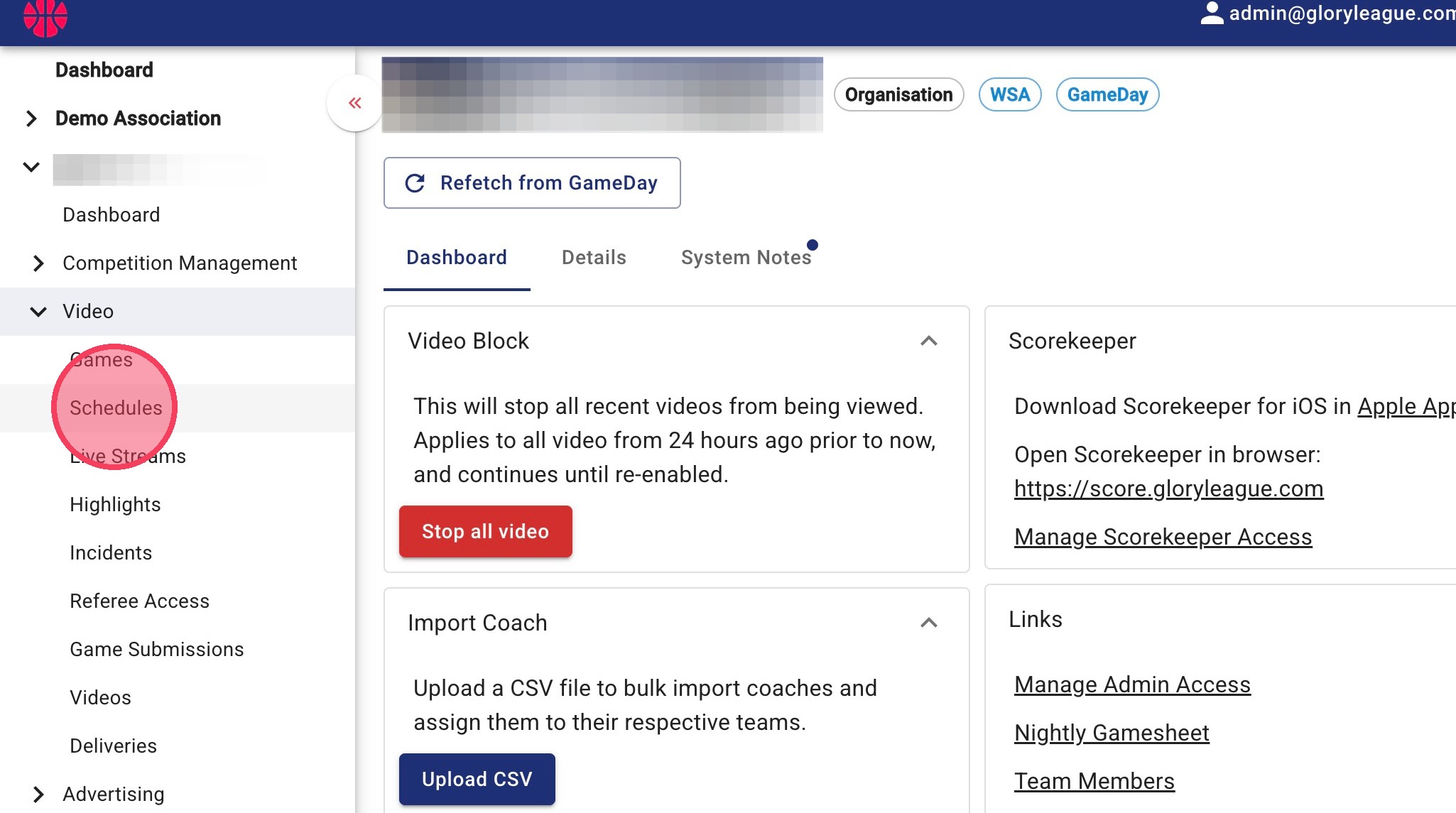
1. Click Schedules under the Video dropdown to navigate to the game schedules page.
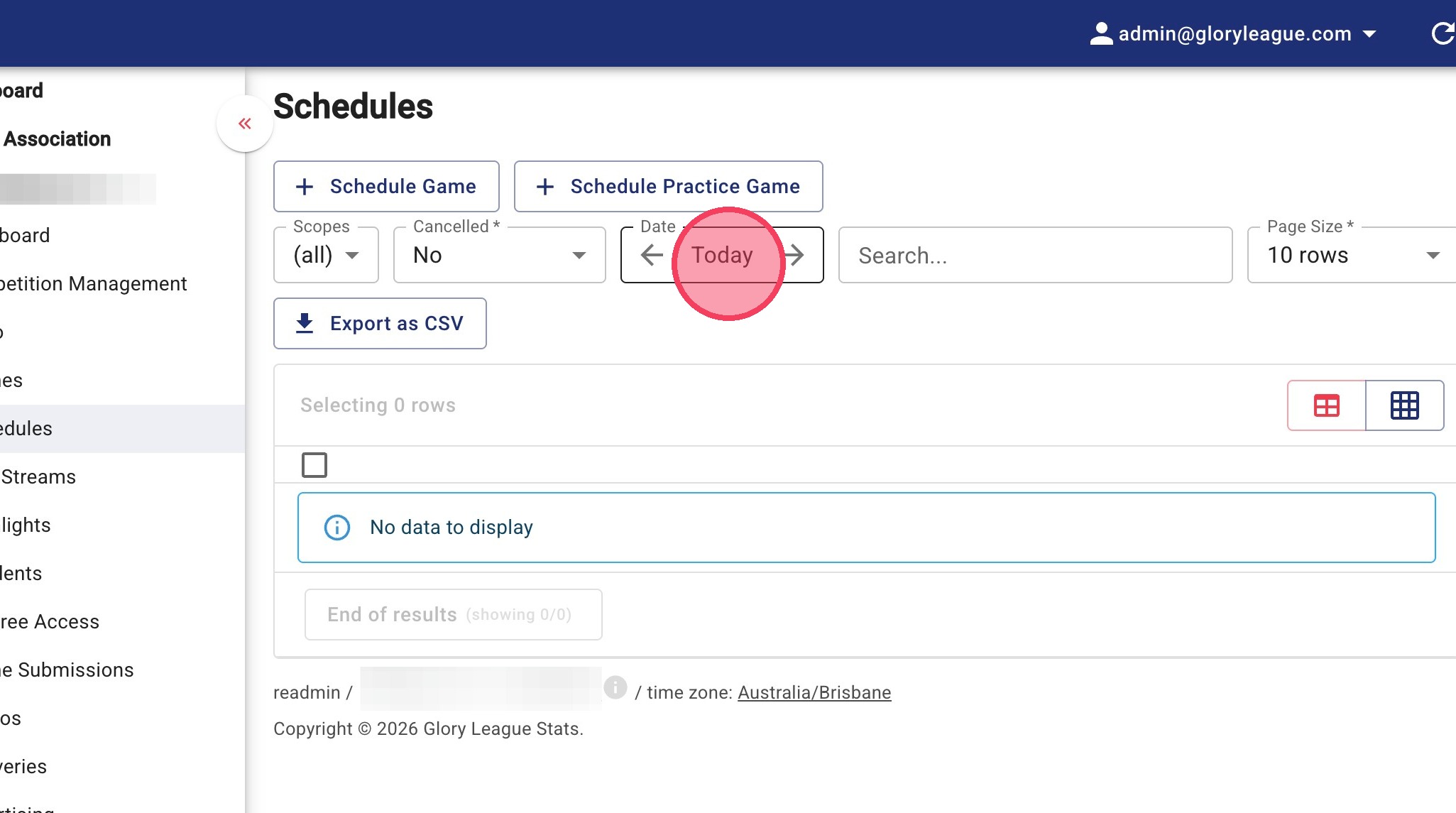
2. You will see games scheduled today by default. Click into the Date field to select a different date.
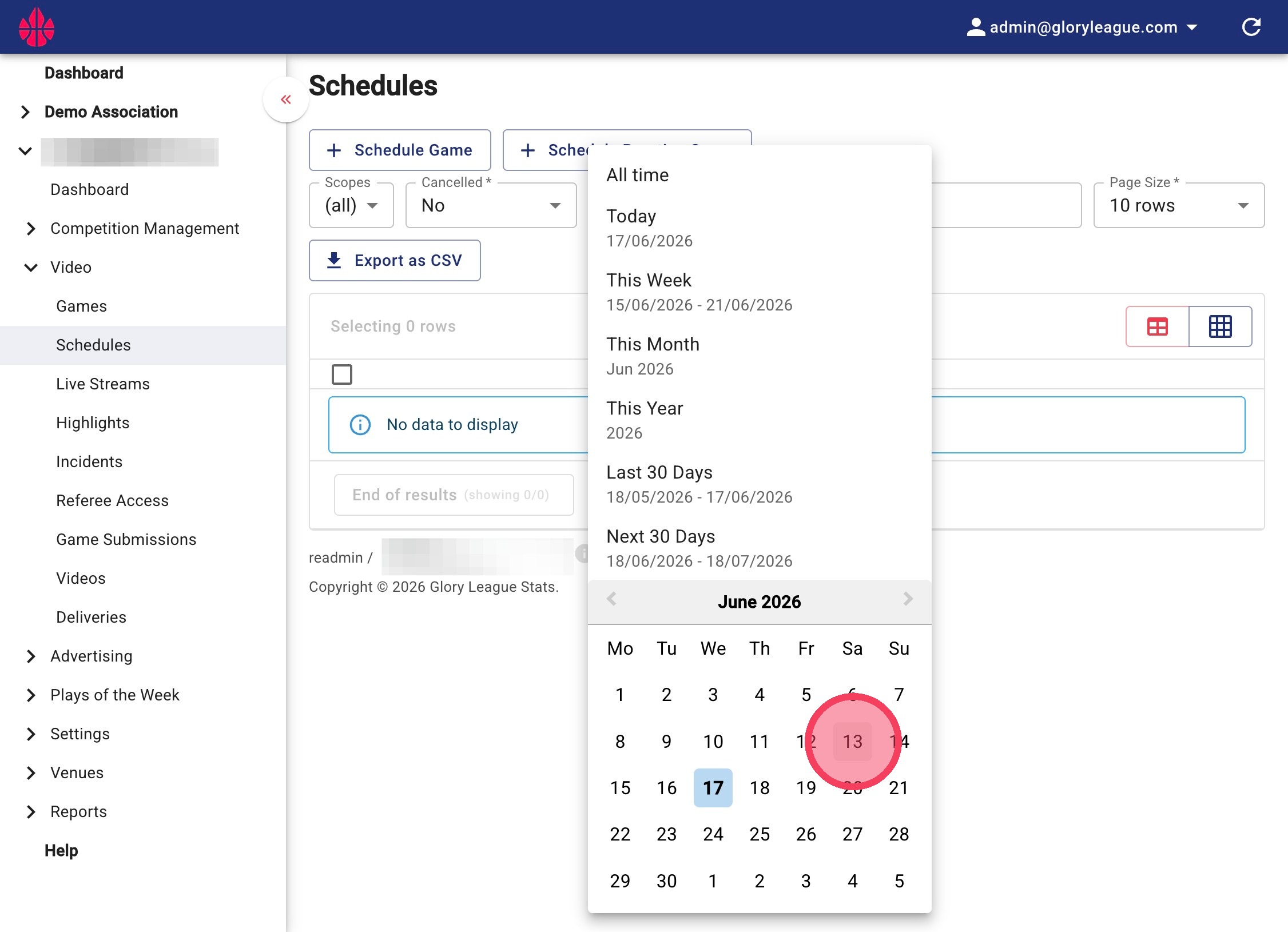
3. Select the date of your missing game.
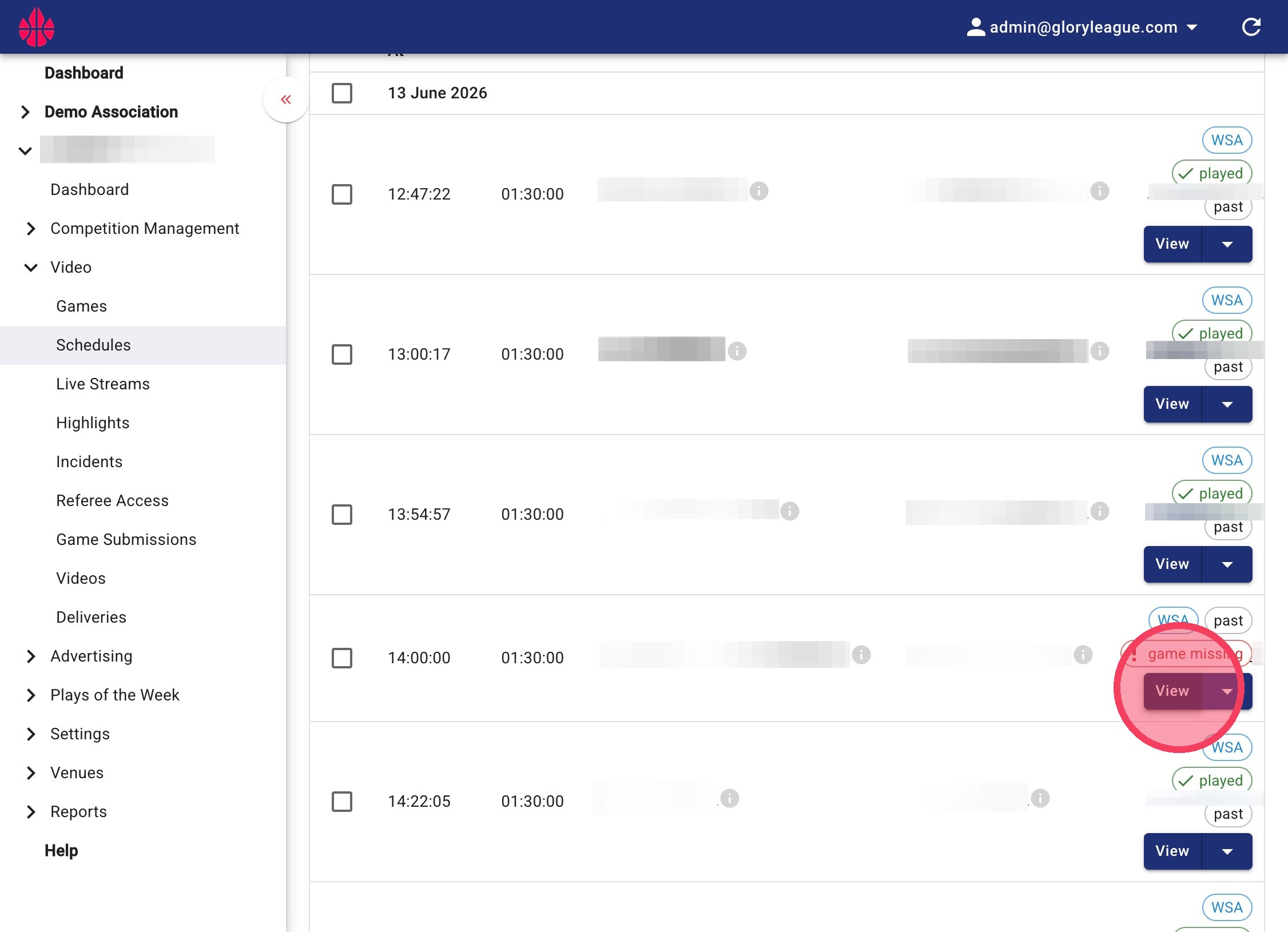
4. Find the relevant game with the game missing status and click View.
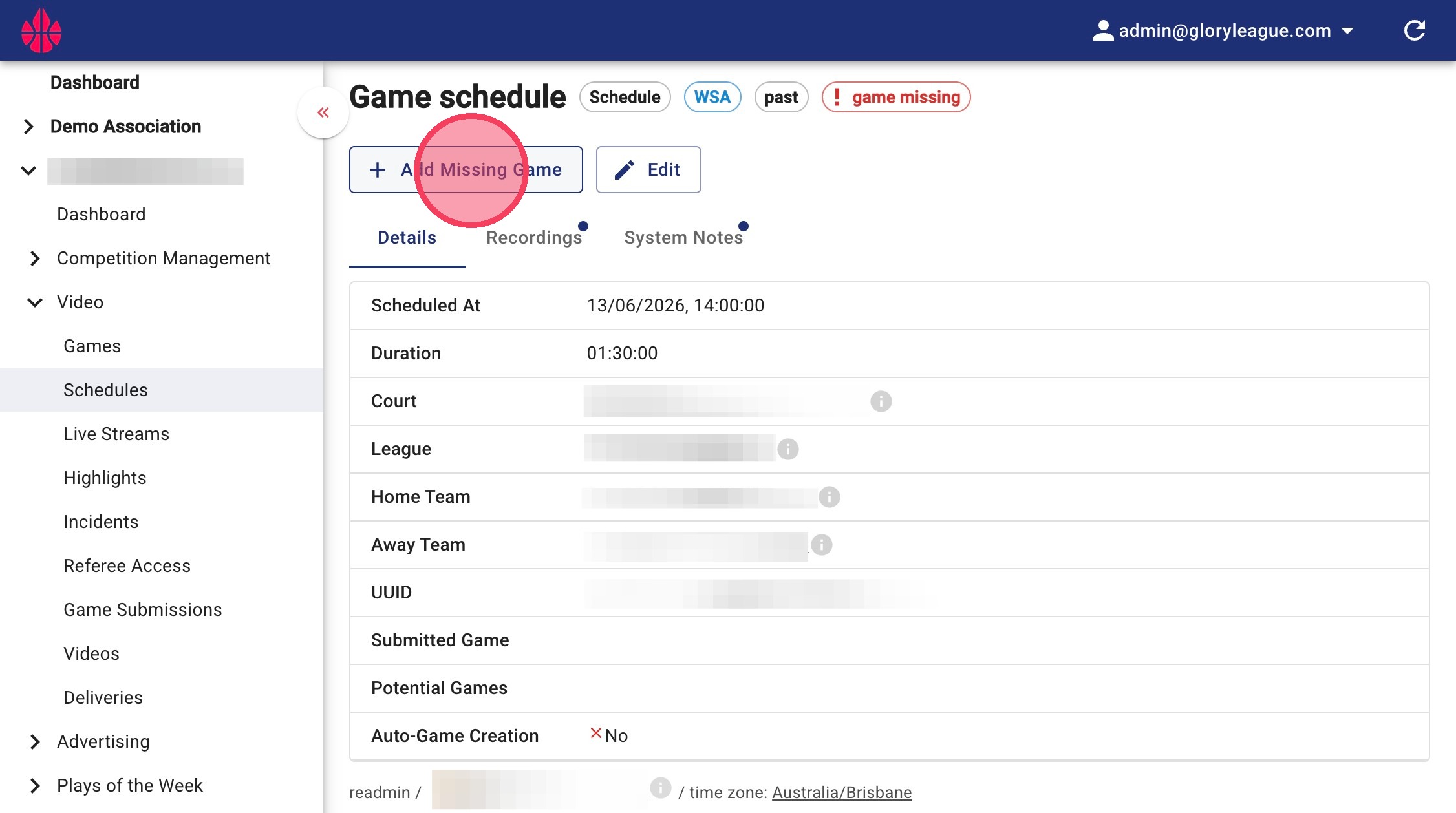
5. Click Add Missing Game.
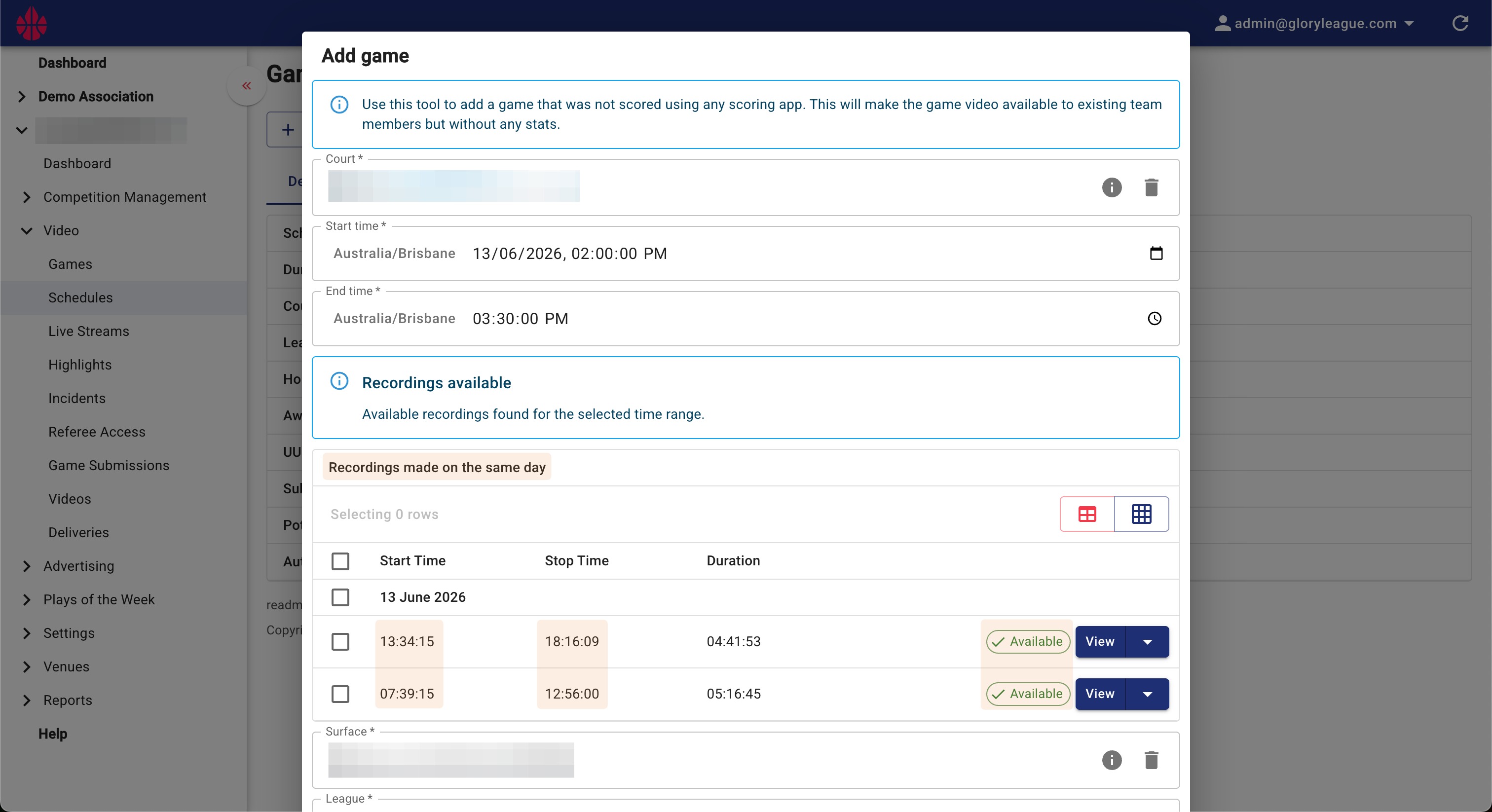
6. A pop-up window will appear.
Check that there are available recordings for when your game was played. If the camera was able to capture the game you will see the Available status under the section Recordings made on the same day (highlighted below) as well as the time the camera started and stopped on that date.
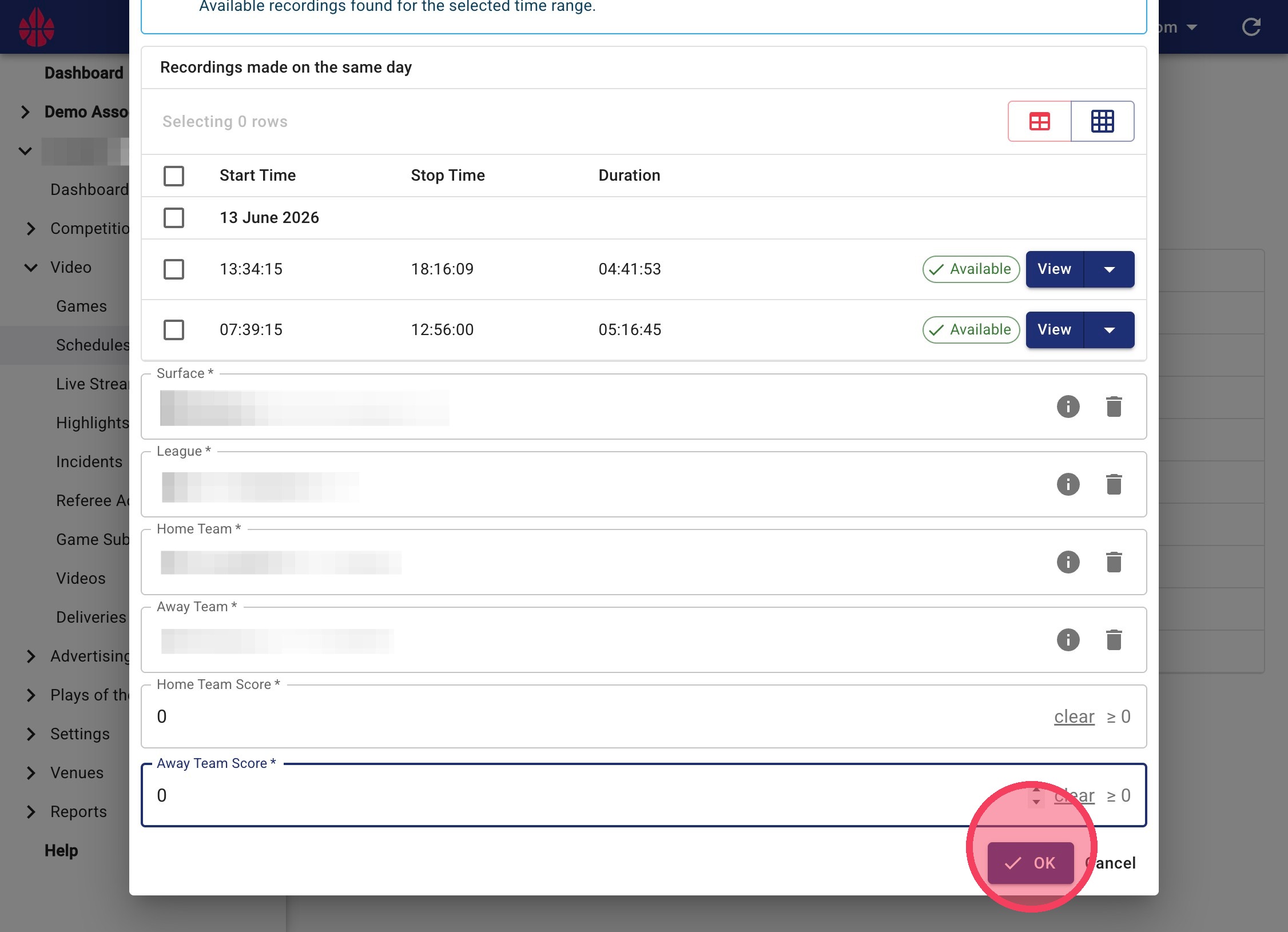
7. Enter a score for both teams and click OK.
When you use the "Add Missing Game" function it will create the game video but there will be no game events imported (such as points) so should only be used in situations where the scoring app was not used.