How to Use Practice Mode Through Scorekeeper
Practice mode is available to associations as a way to record a full court without the virtual camera so is useful to record important trainings or trials. It is designed to be activated by coaches courtside and doesn't require any admin or set up in advance in the backend. If you do not see the Practice option when you login to Scorekeeper please contact adminsupport@gloryleague.com.
Account Access
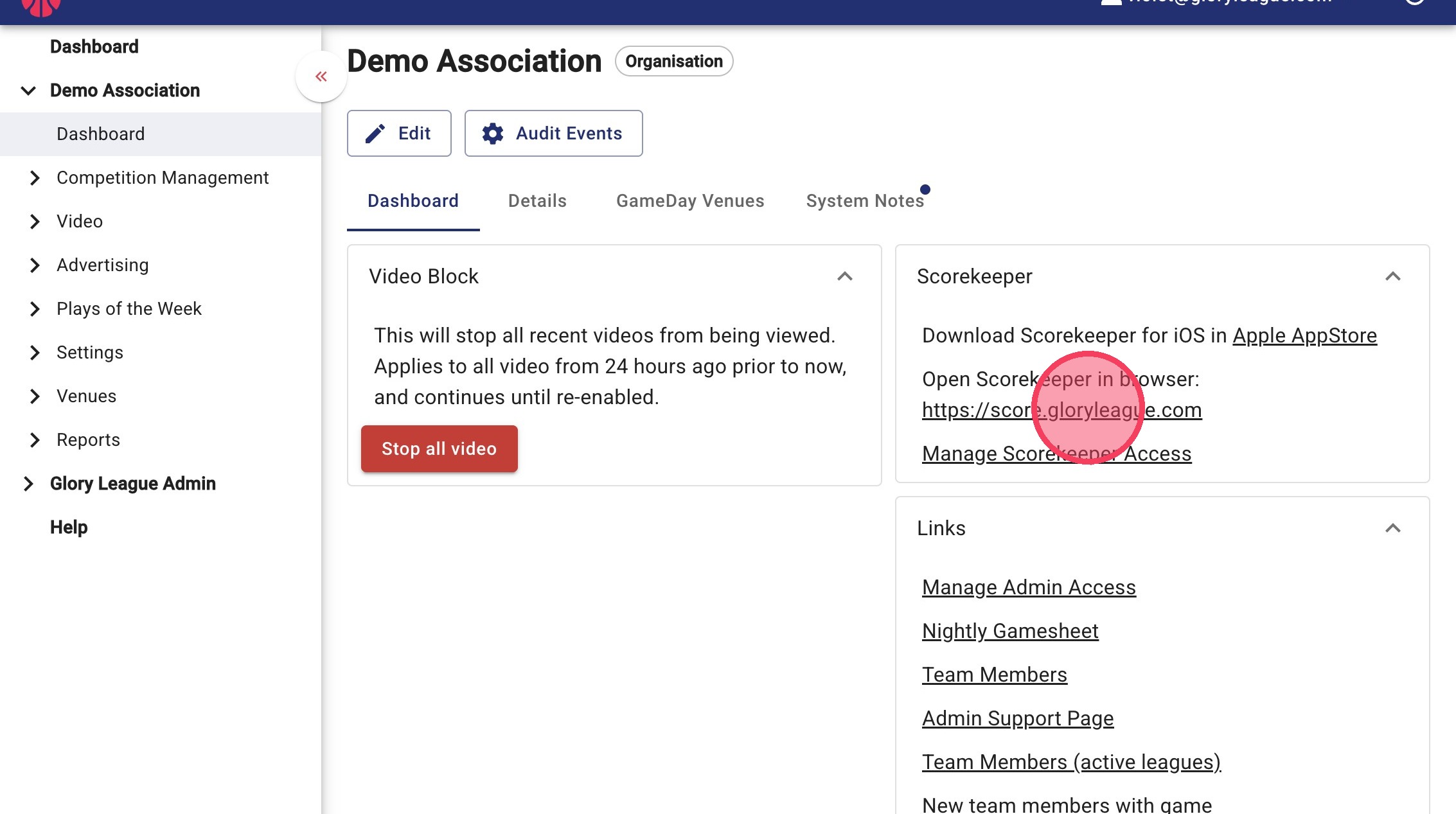
1. Open Scorekeeper within a browser using "https://score.gloryleague.com", or through the iPad app.
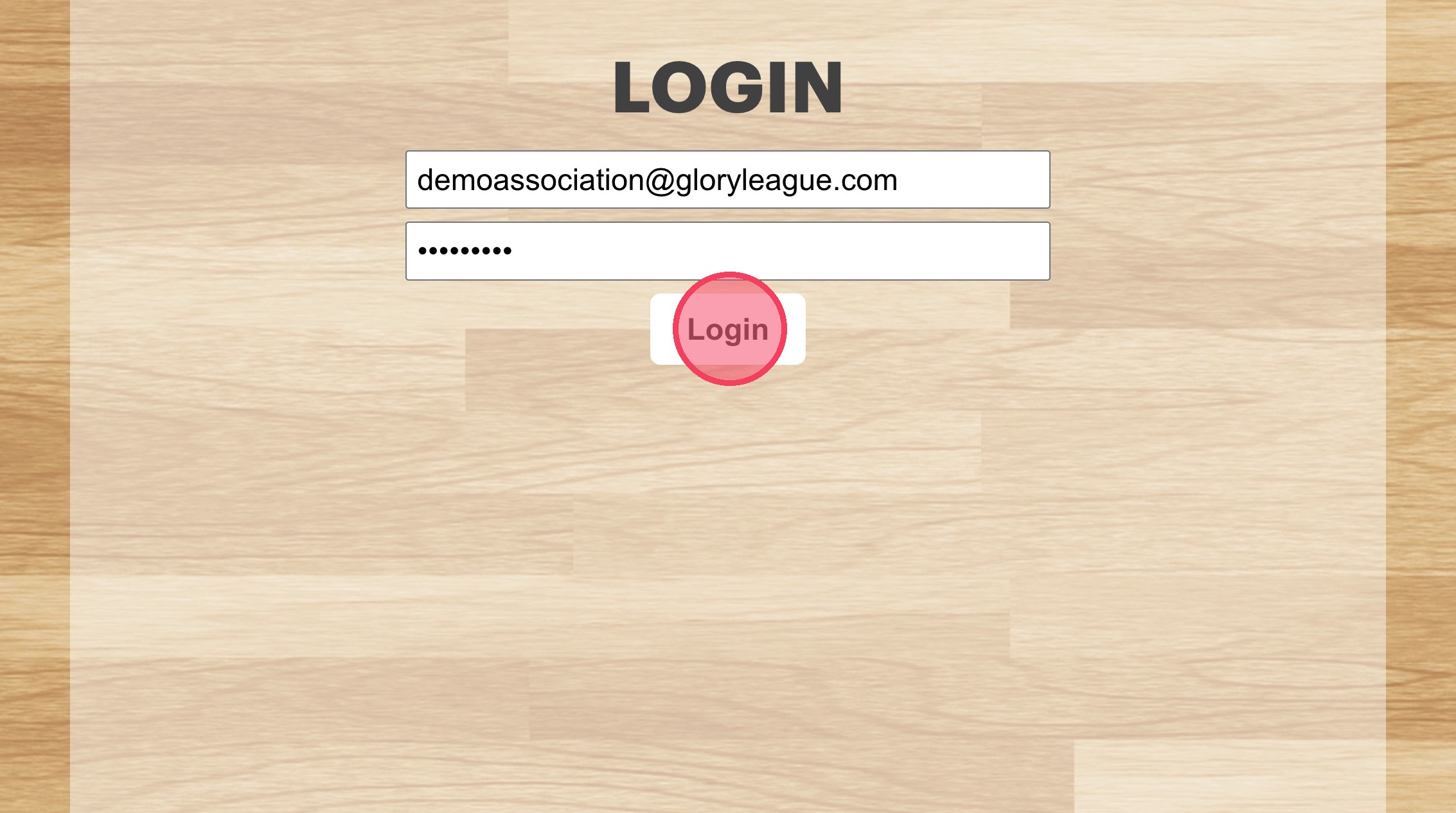
2. Use your Glory League login email and password to Login.
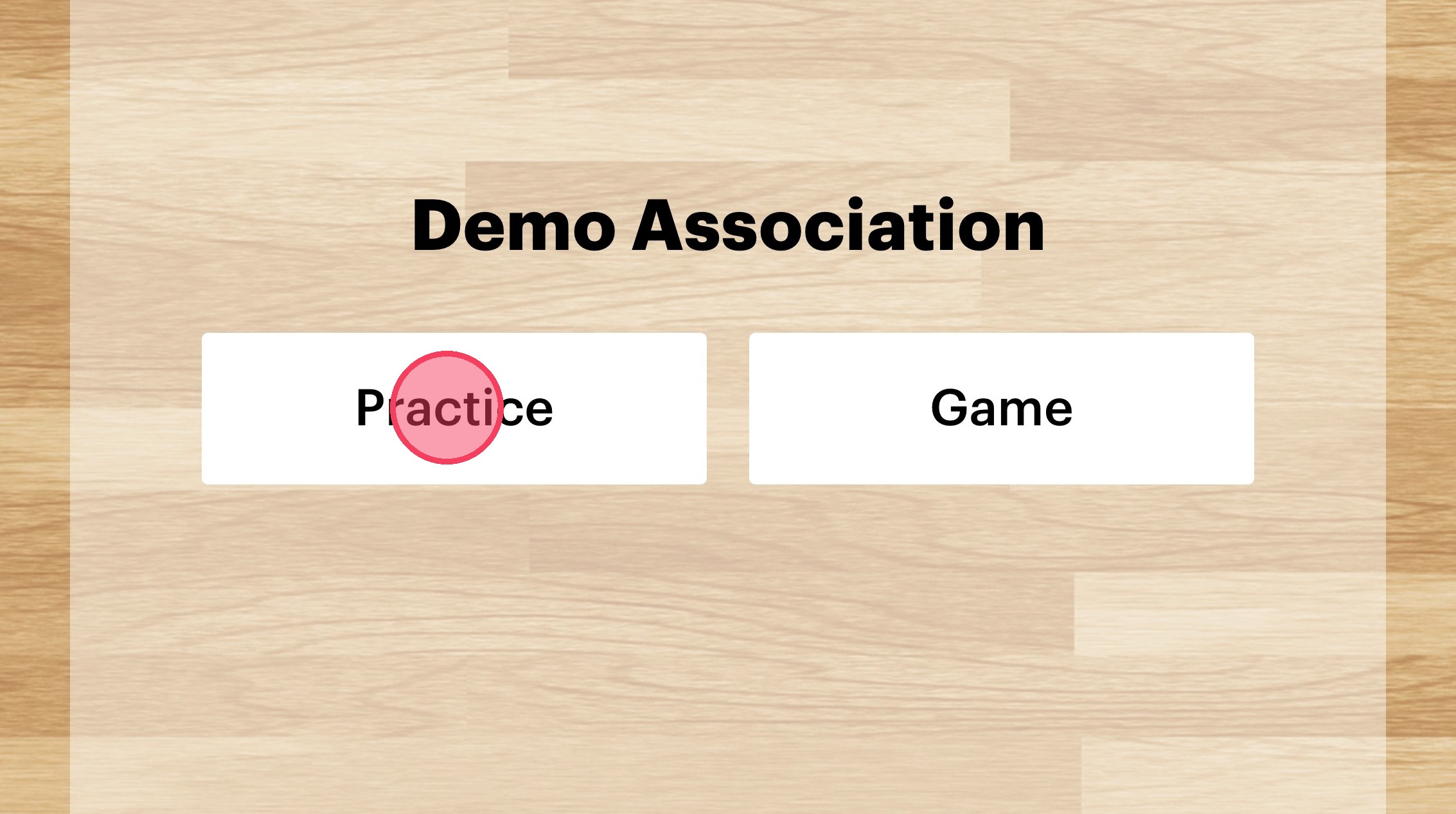
3. Choose "Practice".
Court Selection
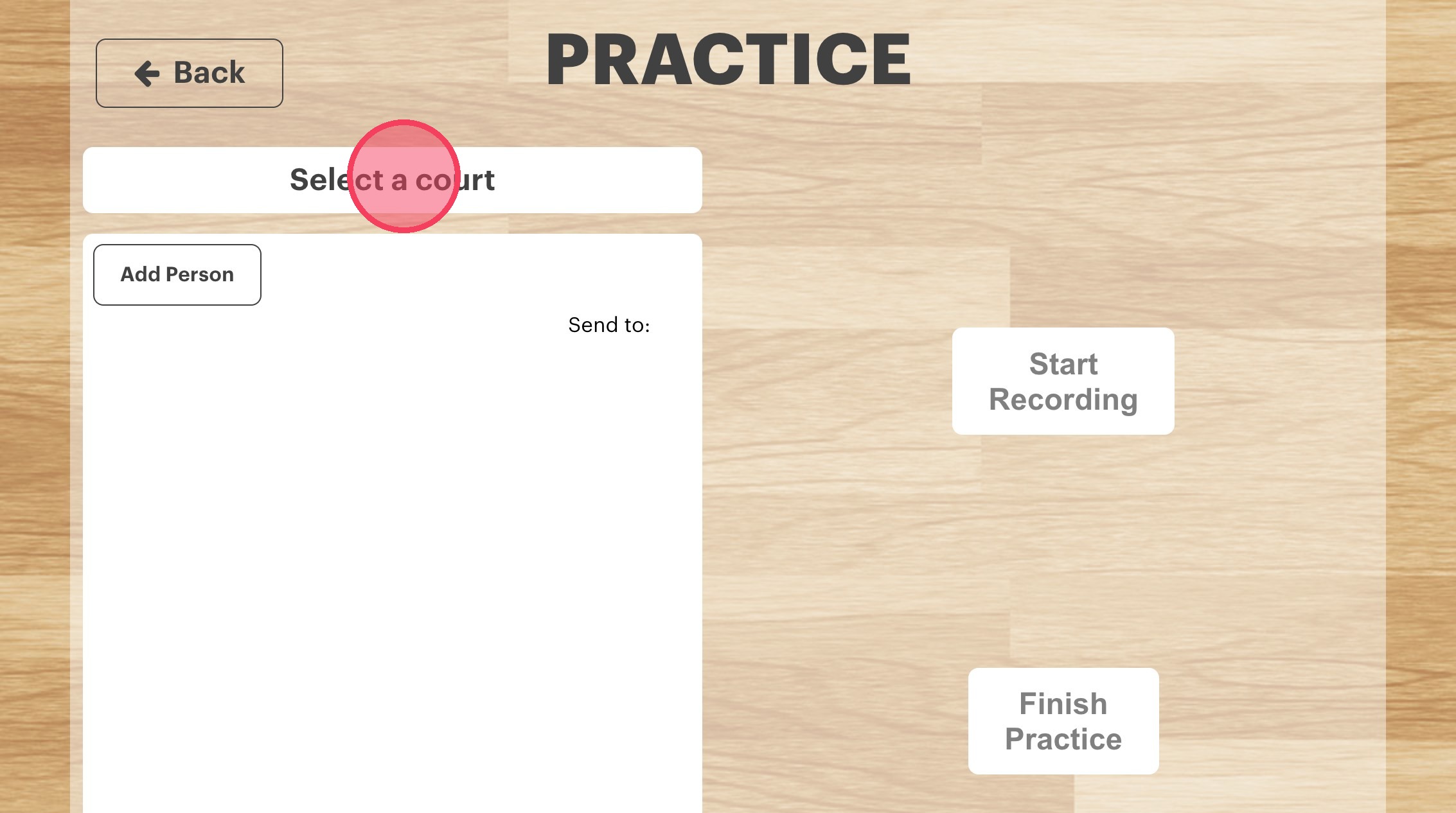
4. Click "Select a court" to choose which courts camera you want to use.
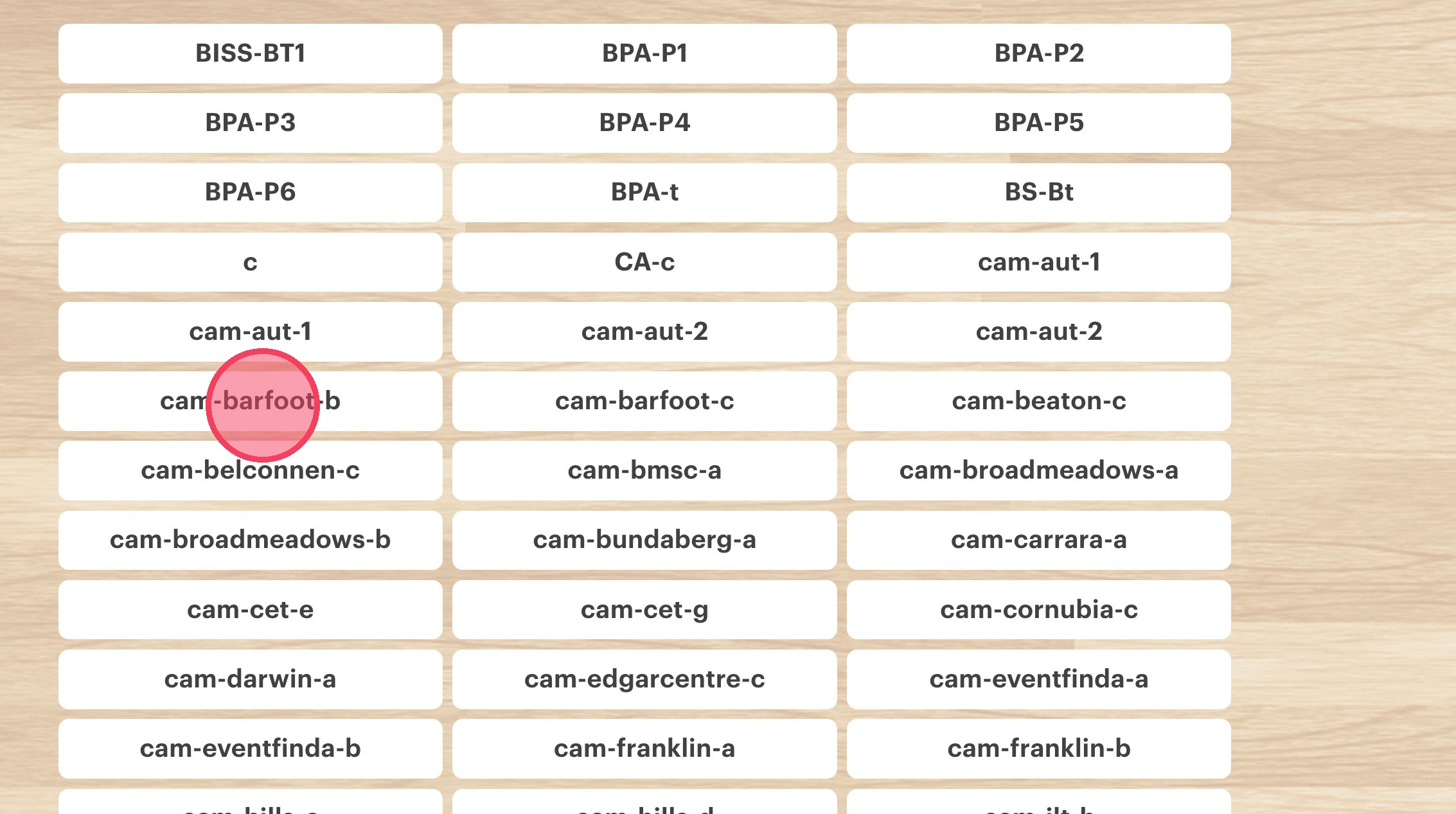
5. Select the desired court to you want to film.
Participant Management
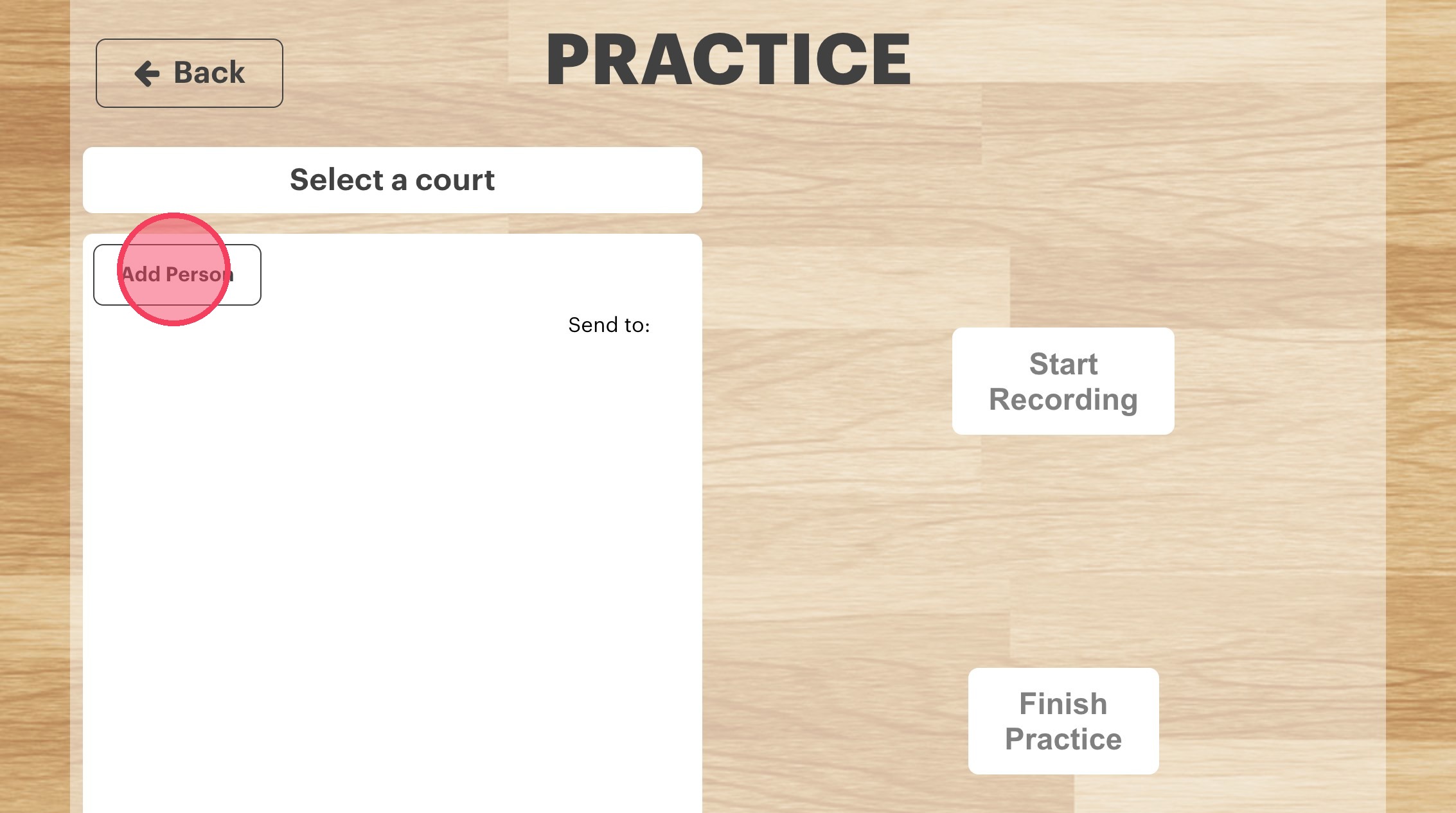
6. To have the recording sent to people such as coaches or admins click "Add Person".
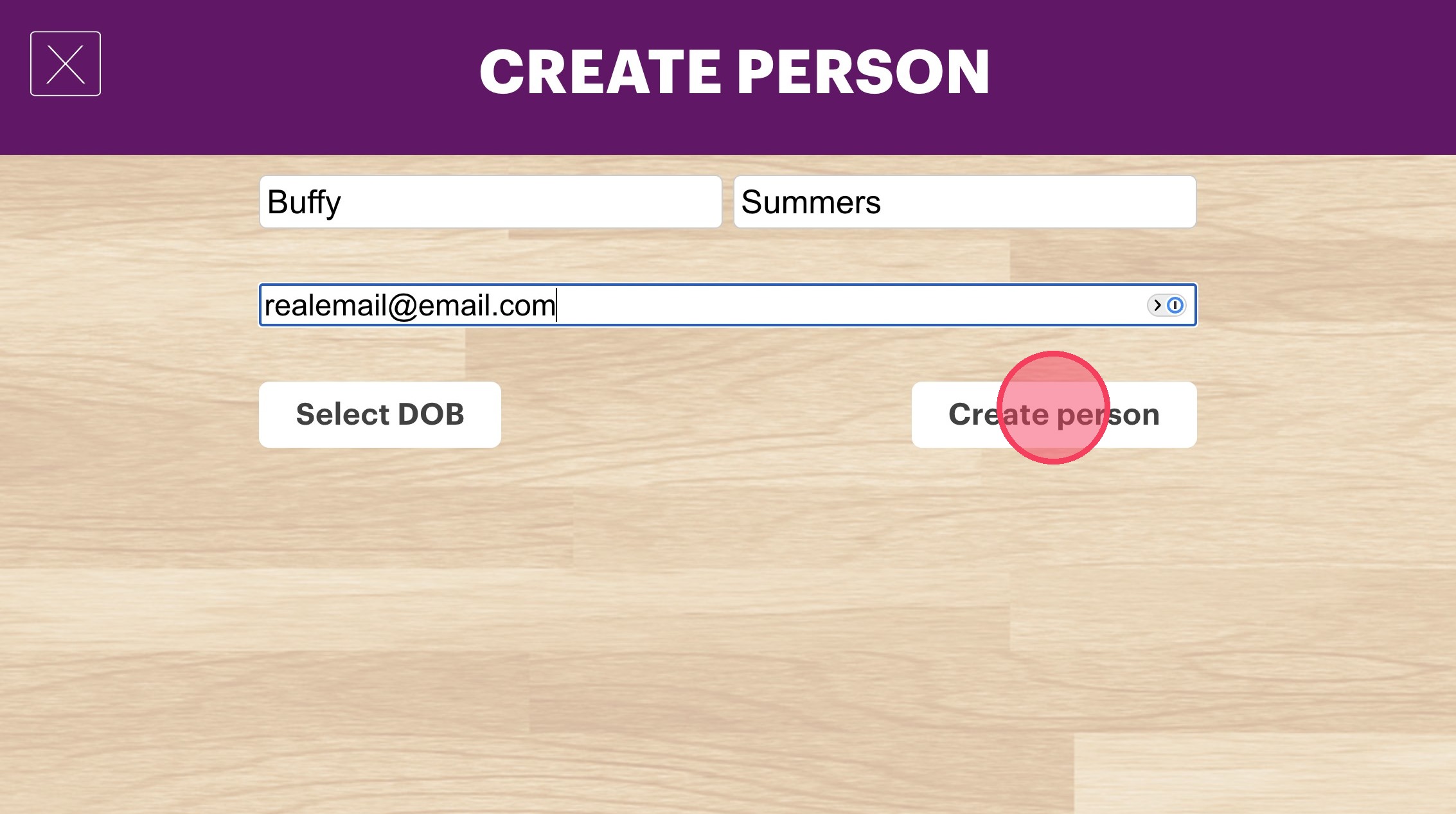
7. Anyone already registered in your database in Glory League will appear as an option to search, otherwise click Create New Person to add a new email.
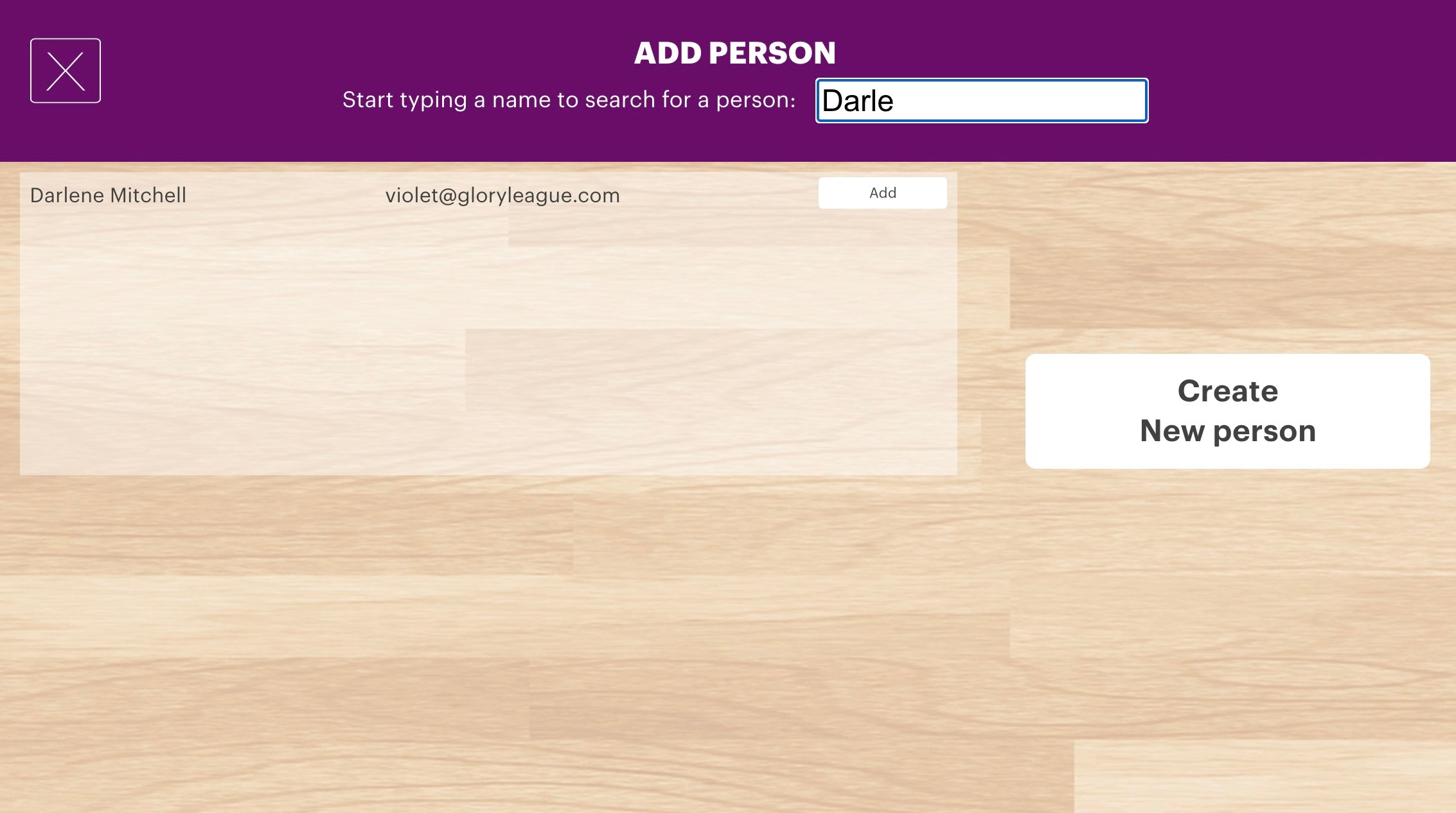
8. Enter details (first/last name and email) of the person you would like to add to the recording.
Practice Recording
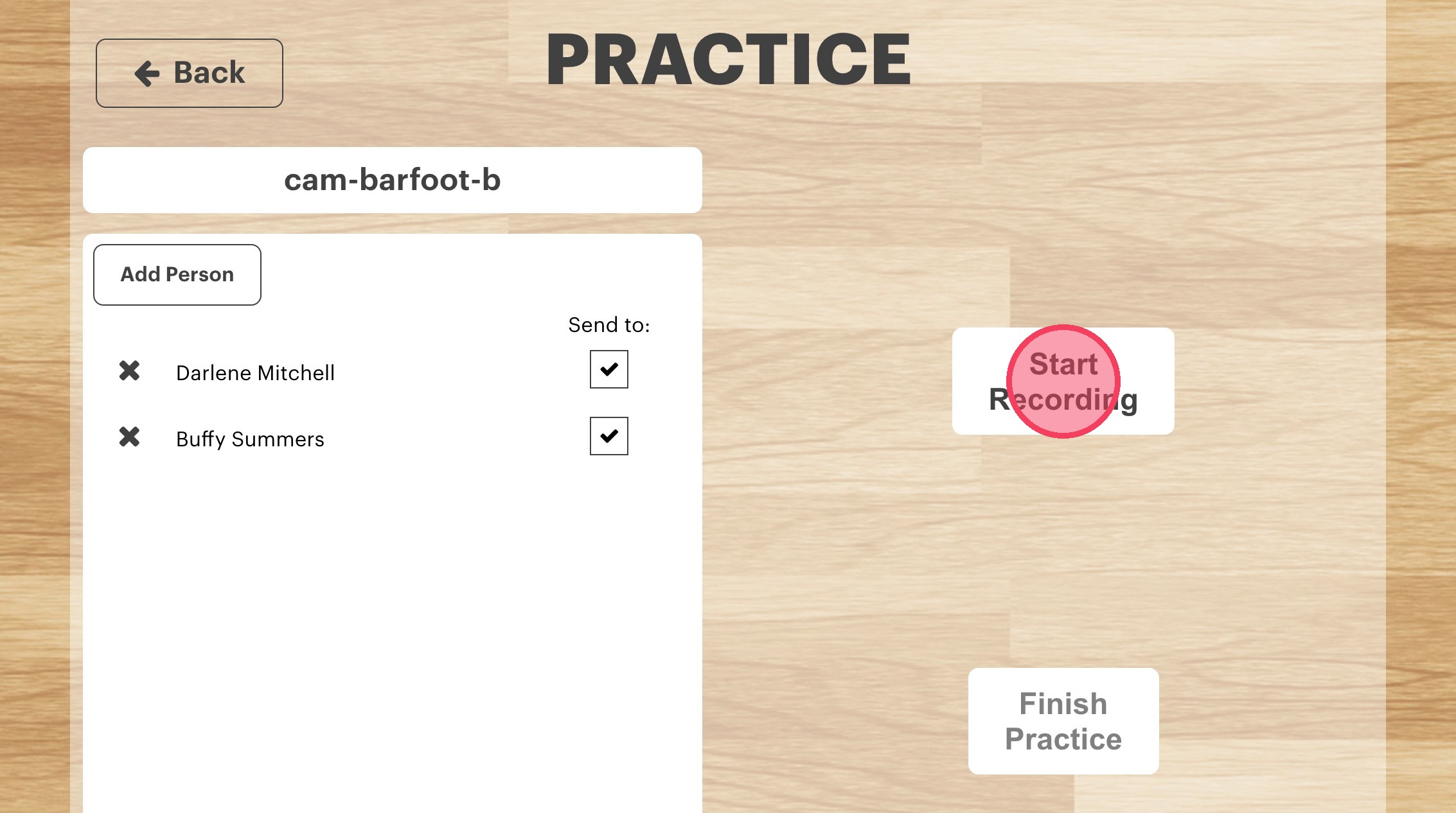
9. When you are ready to have the camera turn on click "Start Recording" -- it is worth turning this on 2- 5 mins before the session starts just to cover any delay in turning the camera on.
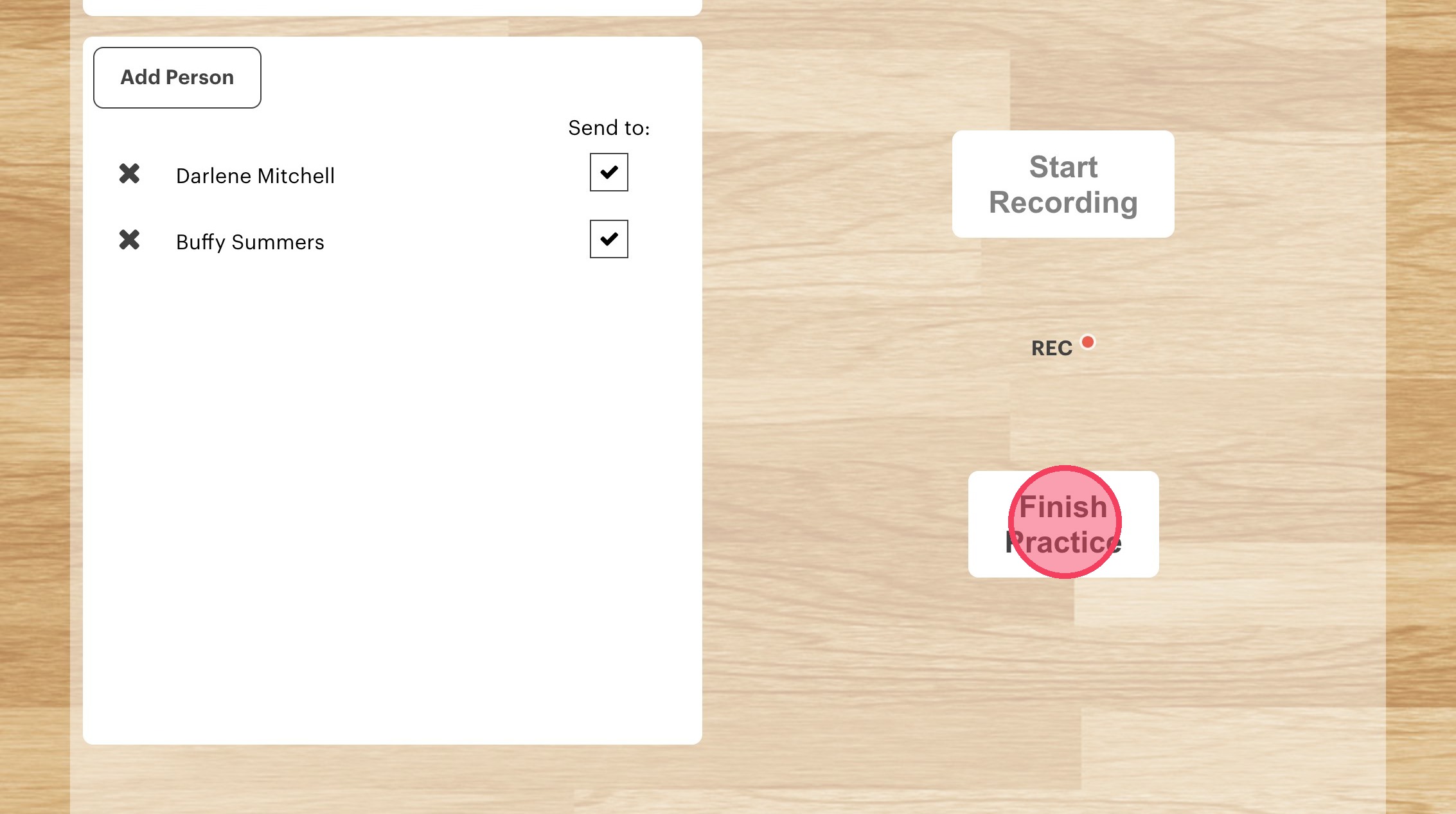
10. When the session is over remember to Click "Finish Practice" to end the recording.
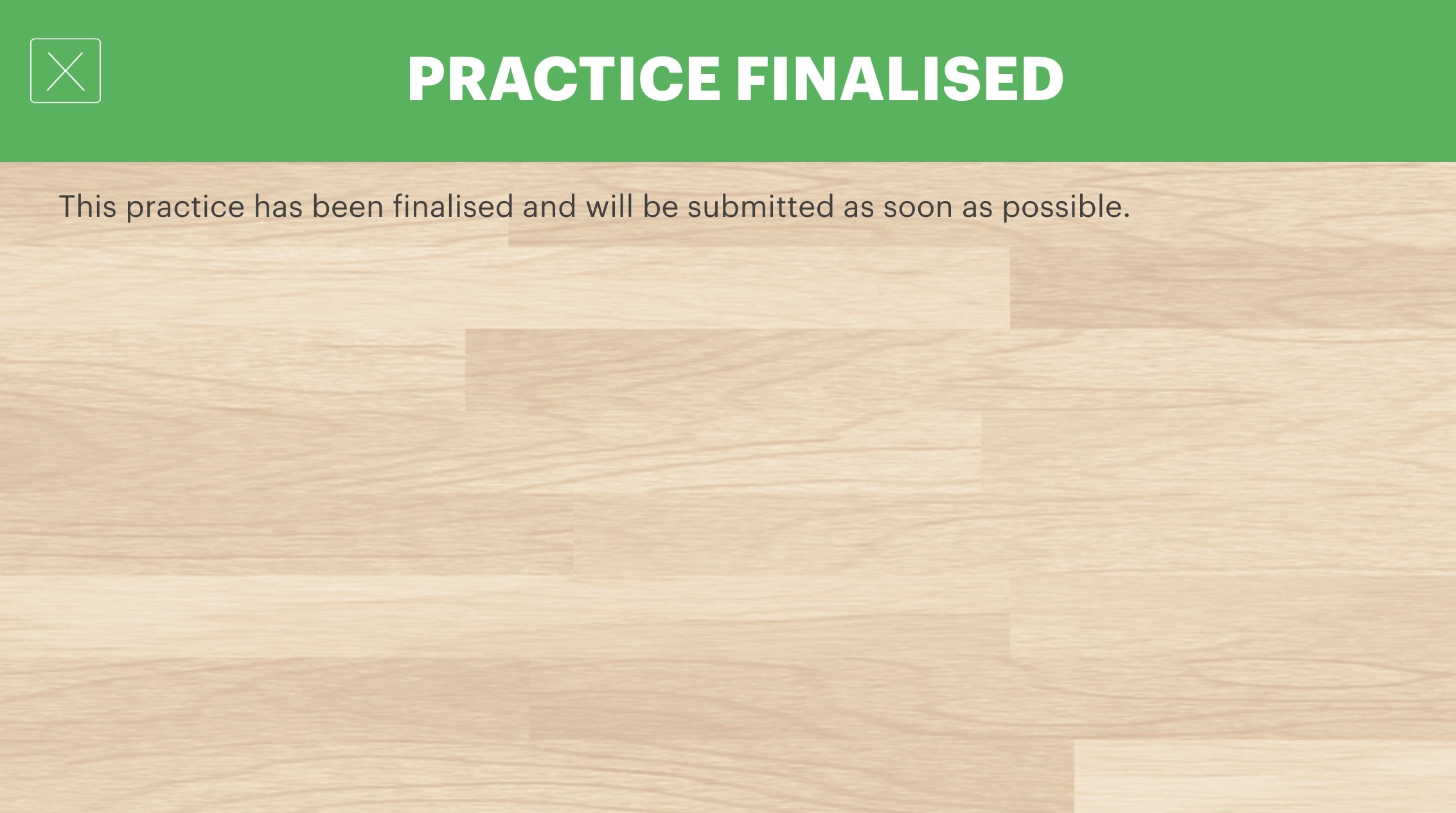
11. You will see "Practice Finalised" to show you have ended your recording. The recording will be submitted and sent to those added to the recording in steps 7 and 8.